How to Review Video Submissions
Verify athlete-submitted scores for online competitions.
Prerequisites
- Approved volunteer with score-input access on the competition (organizers grant this from Volunteers → Roster)
- The competition is online type (in-person competitions use the score-entry surface instead — see How to Score In-Person Events)
Find Your Review Queue
- Sign in and navigate to the competition page.
- Click Review in the competition nav, or visit
/compete/{slug}/reviewdirectly.
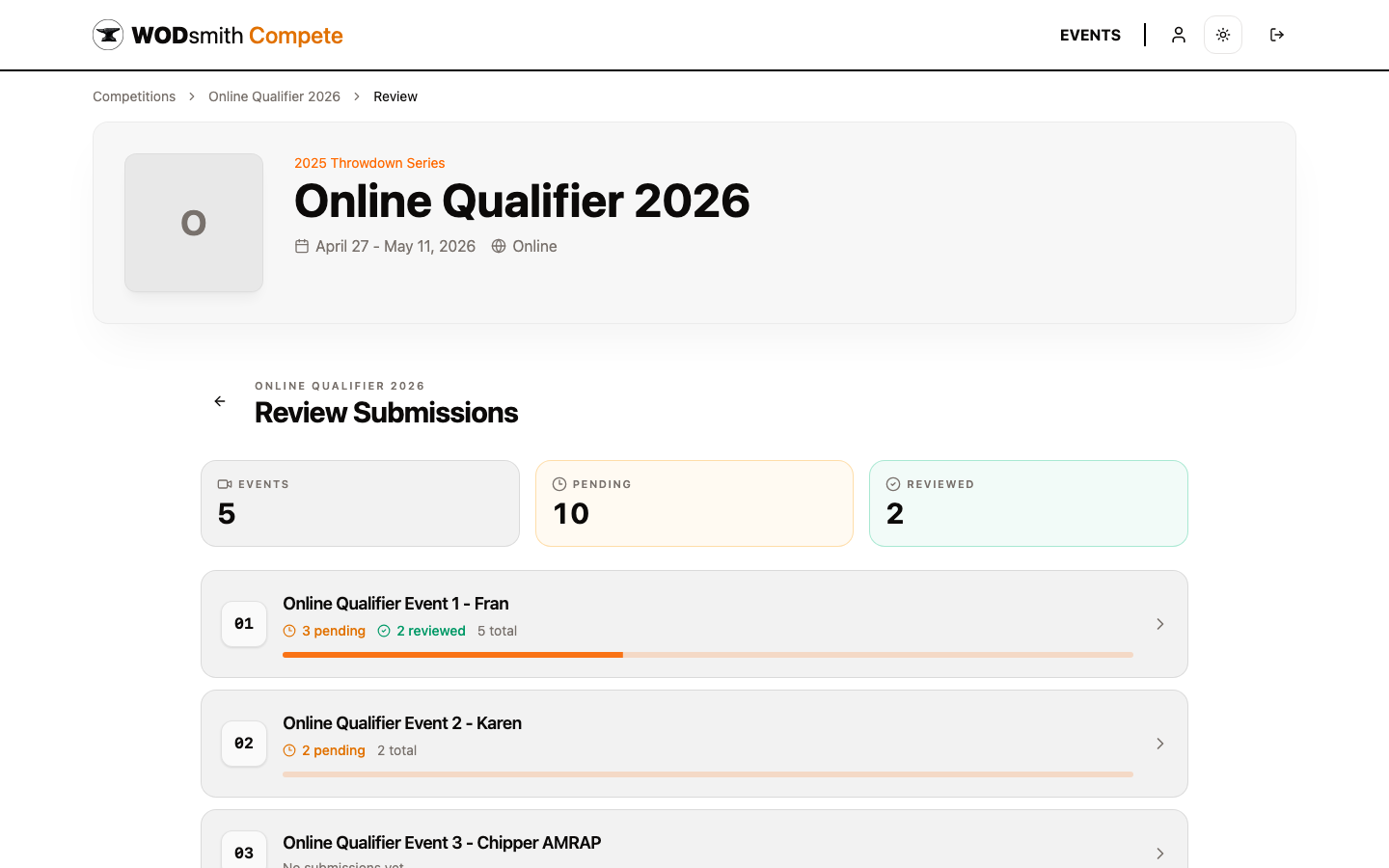
The summary cards show the work remaining across the whole competition:
- Events — total events configured
- Pending — submissions awaiting review
- Reviewed — submissions with a final status
Each event card has its own progress bar: orange = pending, green = reviewed. Click any event card to drill into its submission list.
The Per-Event Submission List
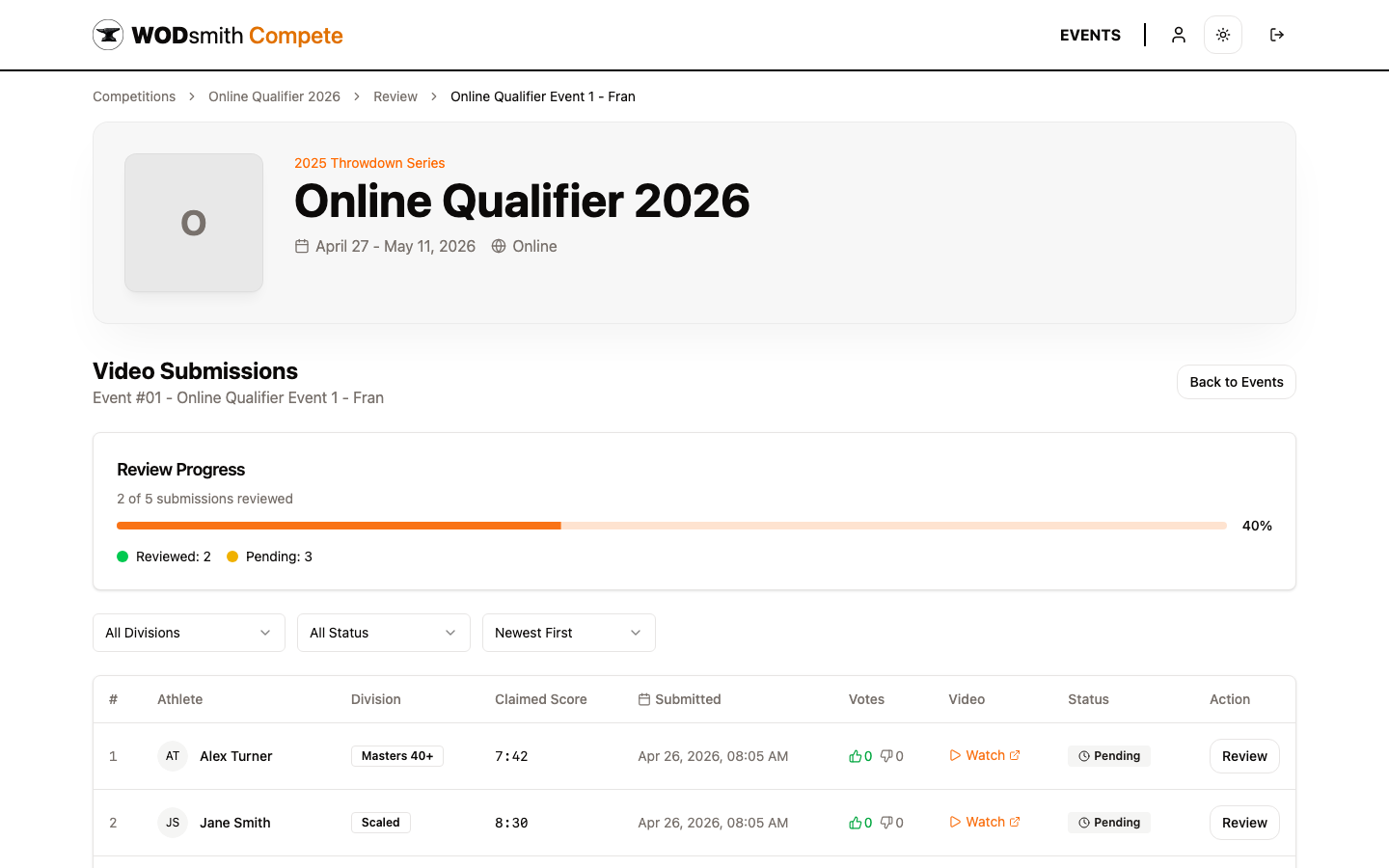
The columns:
| Column | Meaning |
|---|---|
| # | Submission order in this event |
| Athlete | Name and division of the submitter |
| Division | The athlete's registered division (e.g., RX, Scaled, Masters) |
| Claimed Score | What the athlete reported when uploading |
| Submitted | Timestamp the video was submitted |
| Votes | 👍 / 👎 reviewer votes (used by panel review) |
| Video | Direct link to the embedded video |
| Status | Pending / Under Review / Verified / Adjusted / Penalized / Invalid |
| Action | Review button to open the submission |
Filters
The dropdowns let you narrow the list:
- All Divisions — limit to a specific division (RX, Scaled, etc.)
- All Status — show only Pending, only Verified, etc.
- Newest First — sort order (Newest First, Oldest First, By Athlete, By Status)
Use these to focus your review session — for example, "RX, Pending, Oldest First" to clear the longest-waiting RX backlog first.
Reviewing a Single Submission
Click Review on any row to open the submission detail page.
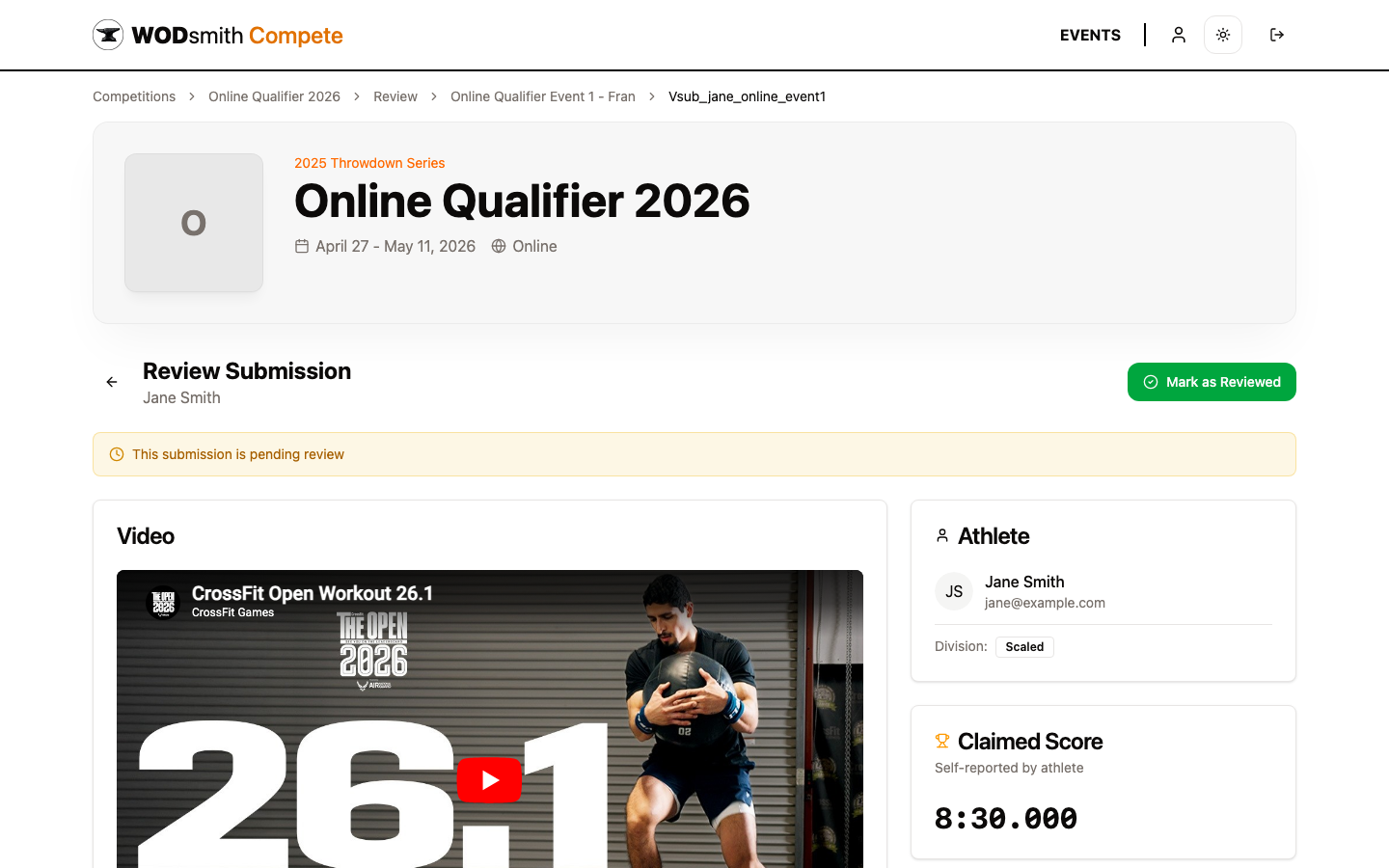
The page splits into two columns:
Left column — Video
- The video plays inline using the appropriate player (YouTube, Vimeo, WodProof native, WeTime resolved)
- For interactive players (everything except external preview links), you can seek and capture timestamps
Right column — Athlete details and score
- Athlete — name, email, division
- Claimed Score — what the athlete self-reported
- Notes — reviewer notes, with optional timestamps that seek the video when clicked
- Vote — 👍 / 👎 if your competition uses panel review
- Penalty / Adjust — change the score
- Status — Verified, Adjusted, Penalized, Invalid
Marking a Submission Reviewed
When you're satisfied, click Mark as Reviewed in the page header. WODsmith will:
- Lock in the chosen status (Verified by default)
- Update the leaderboard cell to show your review status icon
- Transition the submission out of the Pending queue
The submission stays editable — you or another reviewer can revisit it and change the status if needed.
Multi-Round Submissions
For multi-round workouts (e.g., a chipper with 5 rounds), the score editor renders one input per round. Each round shows its own cap status. The total score and tiebreaker are derived server-side; you don't need to do the math.
What Athletes See
The athlete's view of their own submission updates in real time:
- Pending → grey clock icon
- Verified → green checkmark
- Adjusted / Penalized → orange/yellow badge with the new score
- Invalid → red X
Their leaderboard cell shows the same icon once the organizer publishes the division results.
See also: How to Apply a Penalty | How to Score In-Person Events