How to Sign Up as a Volunteer
Apply to volunteer or judge for a WODsmith competition.
Prerequisites
- A WODsmith account (any user can volunteer; no special role required)
- An invite link from the organizer, or a public competition page with volunteer signup enabled
Direct Invite Flow
If the organizer added you to the Volunteers → Roster with your email, you'll get an email titled "You're invited to volunteer at [Competition Name]".
- Click the link in the email.
- Sign in if prompted, using the email the organizer invited.
- Review the prefilled form.
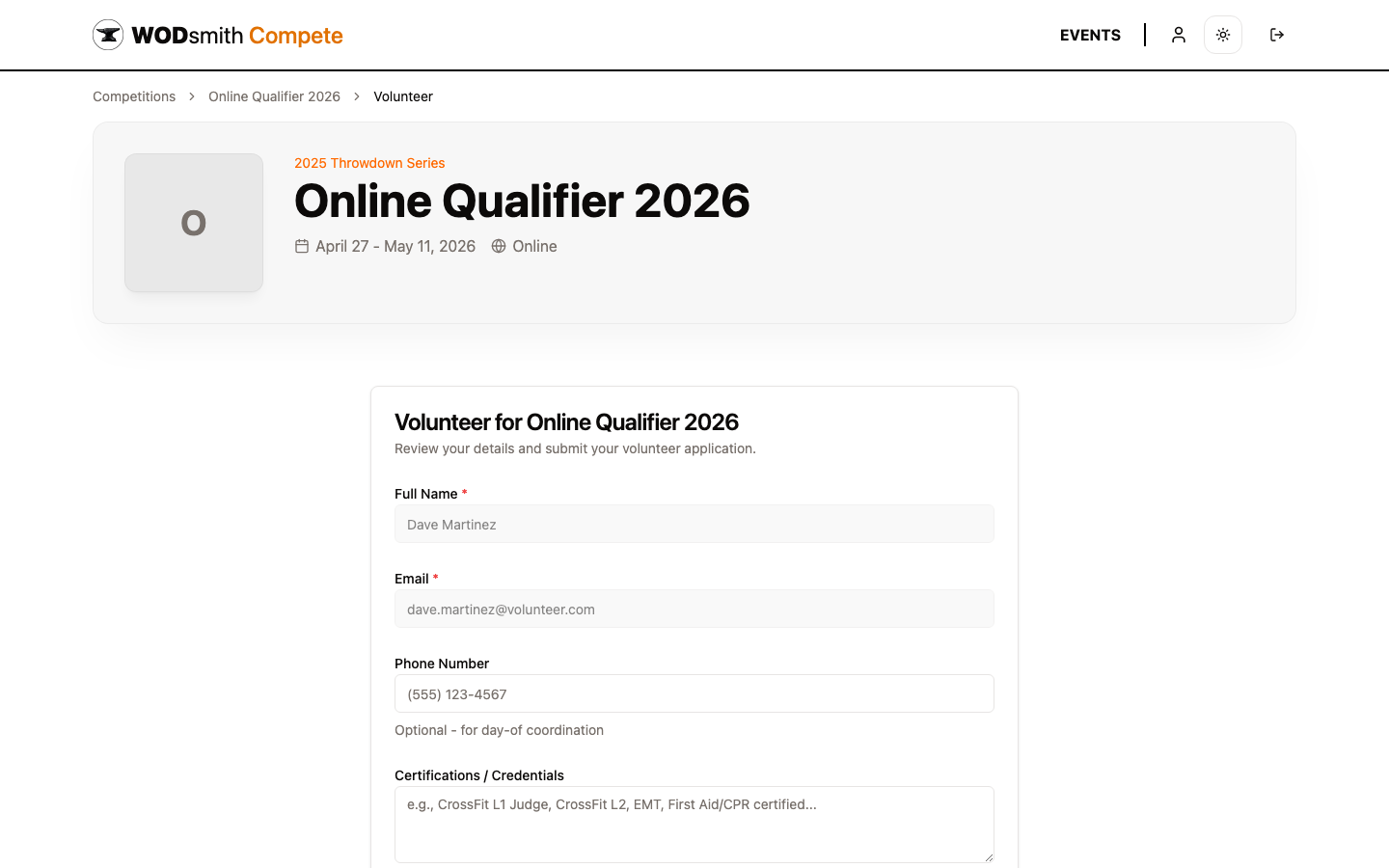
- Fill in any optional details:
- Phone Number — for day-of coordination
- Certifications / Credentials — CrossFit L1 Judge, L2, EMT, First Aid/CPR, etc.
- Custom registration questions — set by the organizer (T-shirt size, dietary preferences)
- Click Submit Application.
Public Signup Flow
When the organizer hasn't sent a direct invite, the competition's public page shows a Sign Up to Volunteer button on the right rail.
- Open the competition page (e.g.,
/compete/{slug}). - Click Sign Up to Volunteer.
- Sign in or create an account.
- Complete the same form shown above.
What Happens Next
Your application enters the organizer's Volunteers → Roster with status Application. The organizer reviews and approves it, optionally assigning roles like Judge, Scorekeeper, Medical, or Emcee.
Once approved:
- You appear on the public roster (if the organizer enabled this)
- You can be assigned to Shifts (time-based work blocks) and Heats (judge rotations)
- You'll see additional menu items on the competition page based on your role:
- Judges with score-input access see Review (online) or score-entry deep links (in-person)
- All approved volunteers see their assigned shifts and heat assignments
Editing Your Application
If you need to update your information after submitting, contact the organizer. Email and name changes that affect billing or identity require the organizer to re-issue the invite.
See also: How to Review Video Submissions | How to Score In-Person Events