How to View Your Heat Schedule
Find your assigned heat times and lane assignments for an in-person competition.
Prerequisites
- Registered for an in-person competition (online competitions don't have heats)
- Heat assignments have been published by the organizer
Steps
- Sign in and navigate to the competition page.
- Click the Schedule tab.
If you're signed in, your heats are highlighted as My Heats at the top of the page so you don't have to scroll to find yourself.
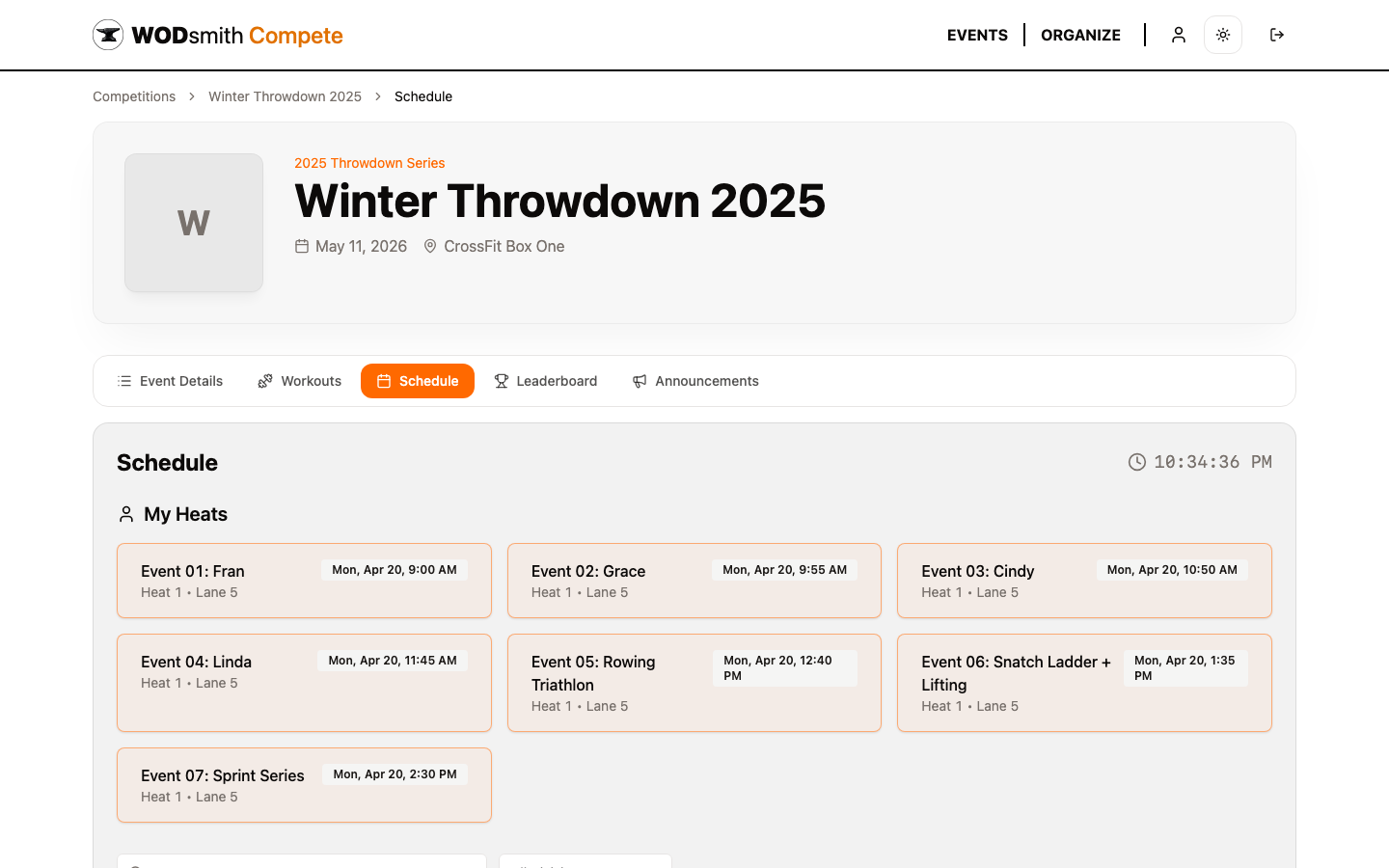
Reading the Schedule
Each heat card shows:
| Field | Description |
|---|---|
| Event | Workout name (e.g., "Event 01: Fran") |
| Date and start time | When to be on the floor |
| Heat number | Your group within the event |
| Lane | Your assigned lane / station |
Below your personal heats, the full event schedule is grouped by event so you can see what's happening on the floor at any given time.
Check-In Reminder
Arrive at your lane at least 10 minutes before your heat start time. Late arrivals can forfeit the heat — once the clock starts, judges typically don't restart for missing athletes.
Schedule Changes
Organizers occasionally adjust heats — combining lanes, adding heats for late registrations, shifting times for venue logistics. When changes happen:
- The schedule page updates immediately
- The organizer typically sends a broadcast (see the Announcements tab)
Re-check the schedule the morning of the event and again before each event. The clock at the top of the page is the live server time, not your device's clock — use it to gauge how long until your next heat.
My Heats Section
The My Heats section at the top is the most important thing on this page. It only shows heats you're personally assigned to and re-orders them in chronological order, so the next heat is always at the top.
If you're a partner / team registration, both teammates see the same heat assignments.
See also: How to Check Your Division Standings | How to View Workout Standards