Sign Up and Complete Your First Judging Shift
In this tutorial, we'll walk through everything a judge or volunteer does on WODsmith — from accepting an invite, to reviewing your first video submission or entering your first in-person score. By the end, you'll know how to find your work queue and submit a verified result.
What We'll Accomplish
- Accept your volunteer invite (or sign up via the public link)
- Find the competition's review or score-entry queue
- Review one online video submission end-to-end
- Enter one in-person score on event day
This tutorial assumes the organizer has already granted you score-input access. If they haven't, you'll only see read-only views and the Review / Score menu items will be missing.
Step 1: Accept the Volunteer Invite
If the organizer invited you directly, you'll receive an email with a link like https://demo.wodsmith.com/compete/{slug}/volunteer (or an invite acceptance URL).
- Click the link from your email.
- Sign in (or create an account) with the email the organizer used to invite you.
- Review the prefilled application — name, email, certifications, availability.
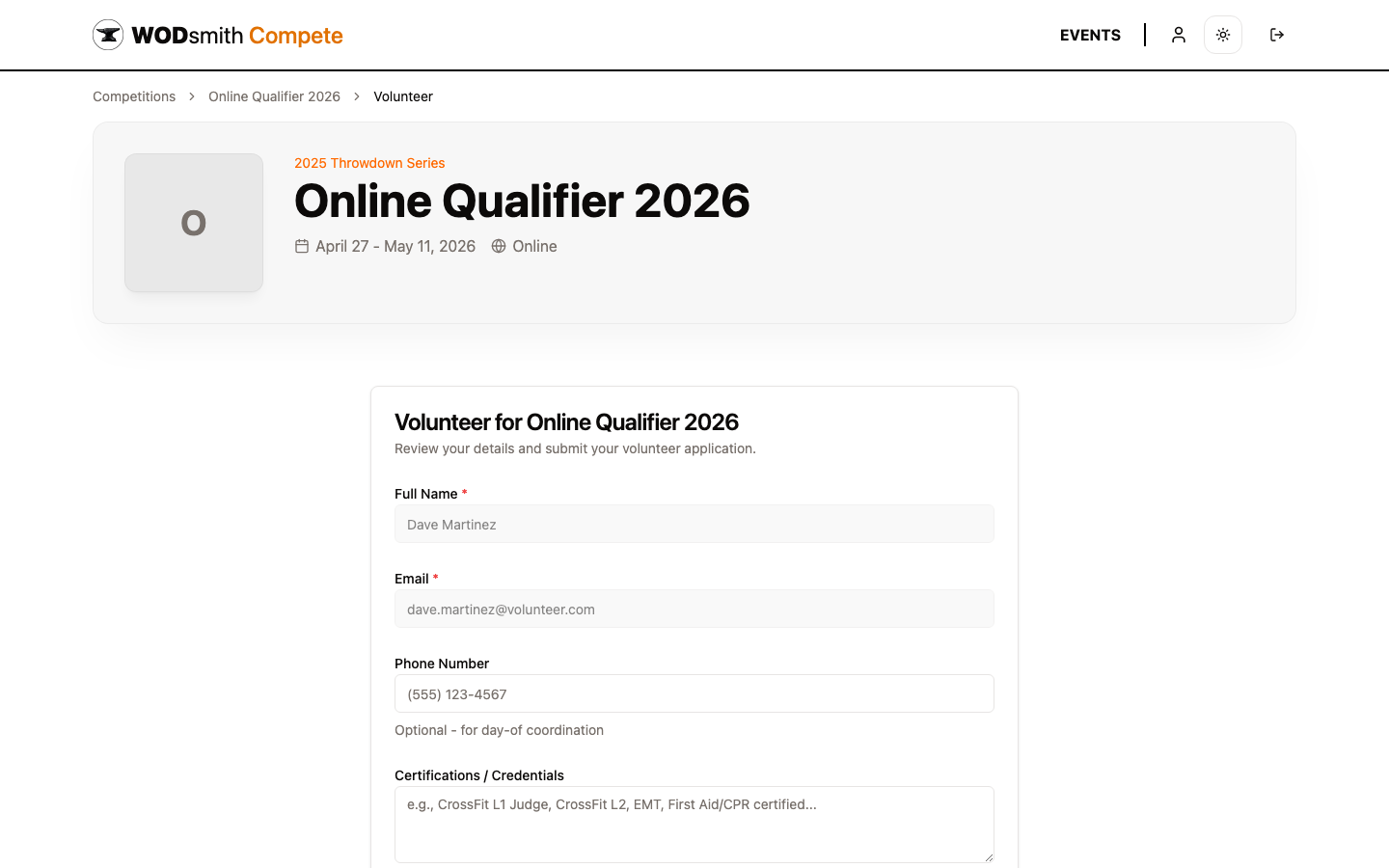
Notice that the "Certifications / Credentials" field is freeform — list any relevant credentials (CrossFit L1 Judge, L2, EMT, First Aid/CPR). Organizers use this when assigning roles.
- Click Submit Application.
The organizer will see your application on their Volunteers → Roster tab and can approve and assign roles.
What if I wasn't invited directly?
If the competition has open volunteer signup, the public page shows a Sign Up to Volunteer button. Click it and you'll land on the same form.
Step 2: Open the Competition
Once approved, you'll see new menu items on that competition's page that other athletes don't have access to.
- Sign in at
https://demo.wodsmith.com/sign-in. - Navigate to the competition page (the link is in your invite email, or browse from Events).
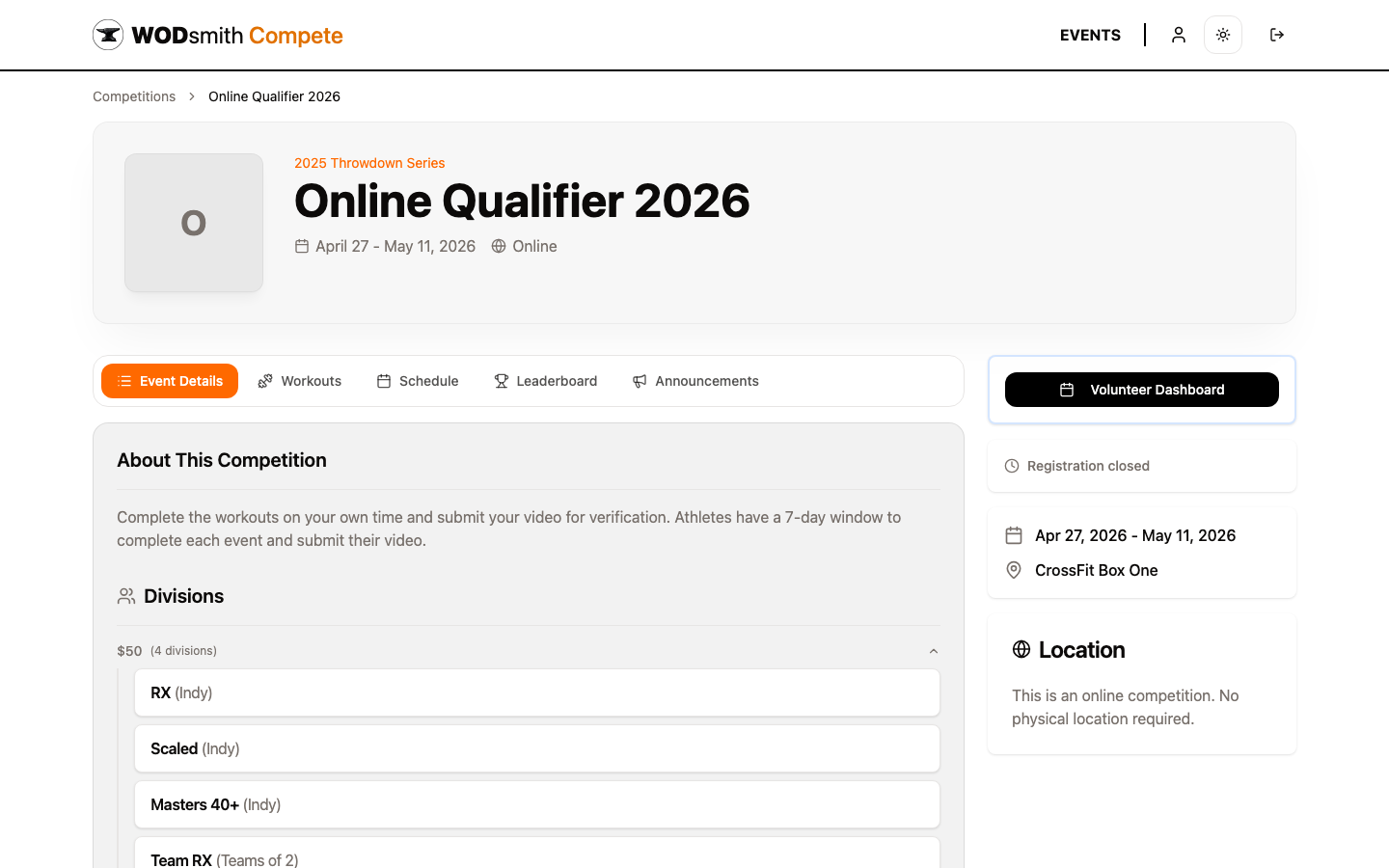
You should see the standard event tabs — Event Details, Workouts, Schedule, Leaderboard, Announcements — plus, depending on competition type and your assignments, a Review link (online) or score-entry surfaces (in-person).
Step 3: Review Your First Video Submission
For online competitions, judges review videos and verify athlete-submitted scores.
- Click Review in the competition nav (or visit
/compete/{slug}/review).
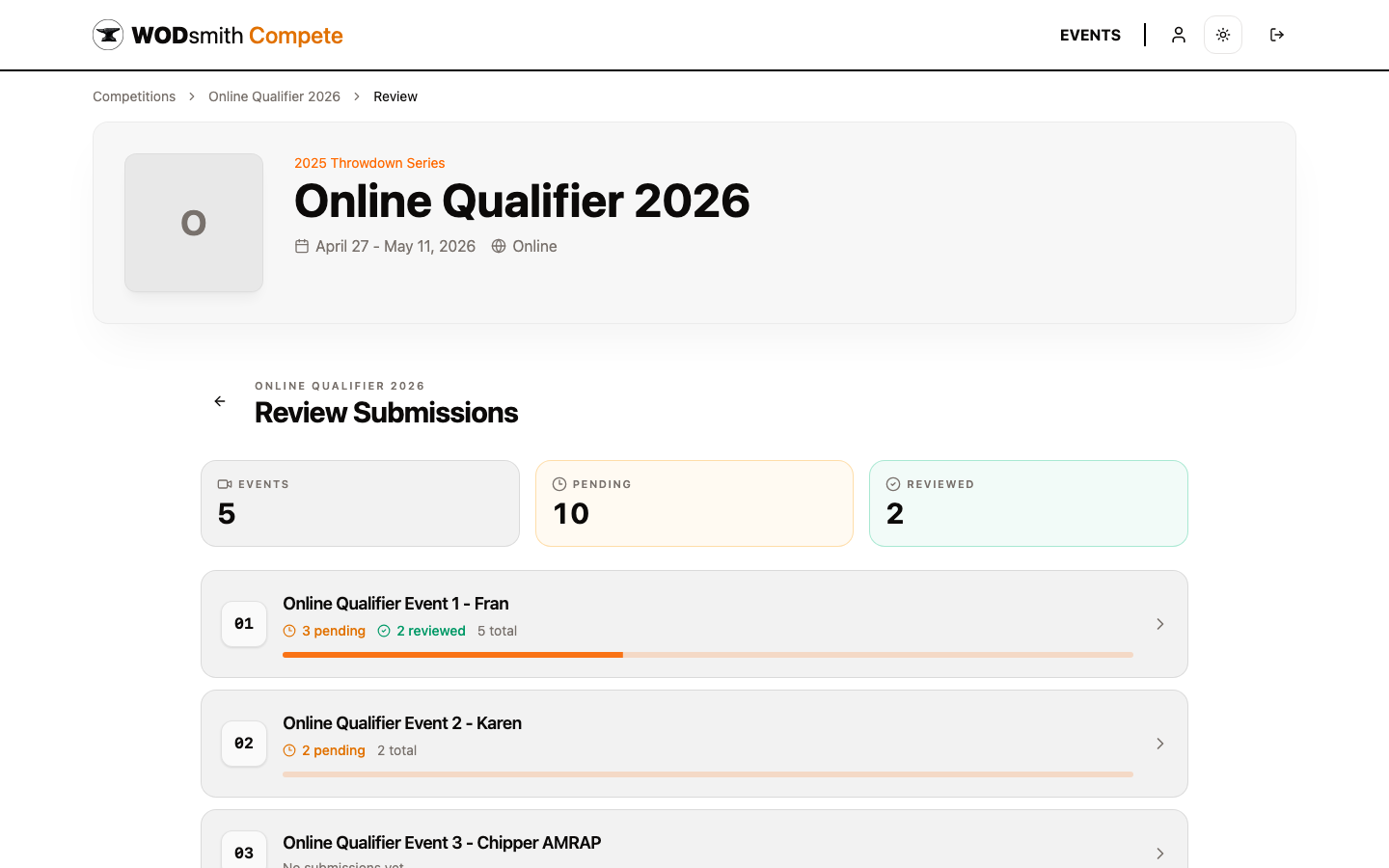
The review queue shows:
- Events — total events in the competition
- Pending — submissions awaiting review across all events
- Reviewed — submissions with a final status (verified, adjusted, penalized, invalid)
Each event card shows its own progress bar — orange = pending, green = reviewed.
- Click an event with pending submissions.
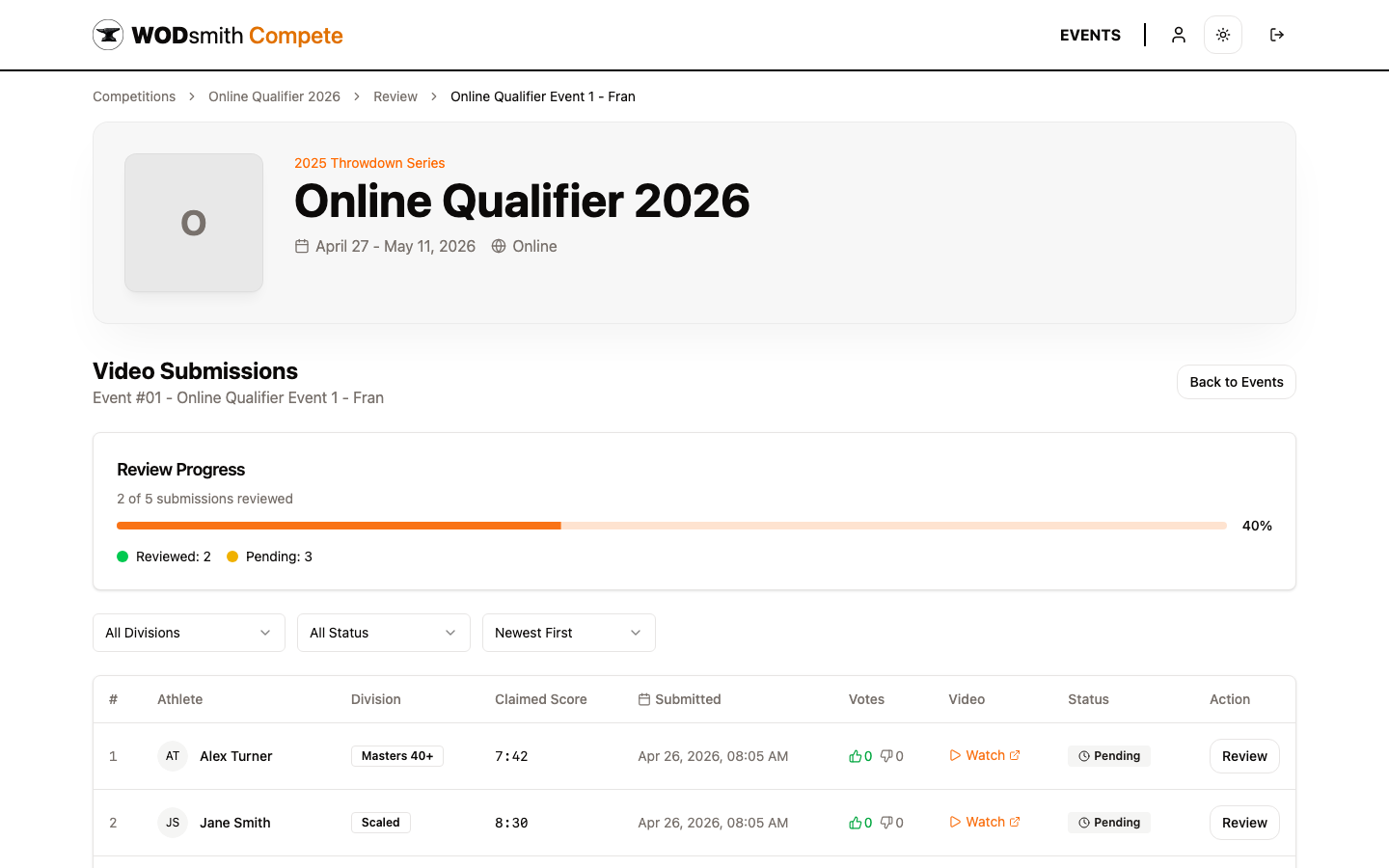
Notice the columns:
| Column | Meaning |
|---|---|
| Athlete | Name and division of the submitter |
| Claimed Score | What the athlete reported |
| Submitted | When the video was submitted |
| Votes | Reviewer 👍 / 👎 votes (used in panel review) |
| Video | Link to watch the embedded video |
| Status | Pending, Under Review, Verified, etc. |
| Action | Review button to open the submission |
- Click Review on a row with status Pending.
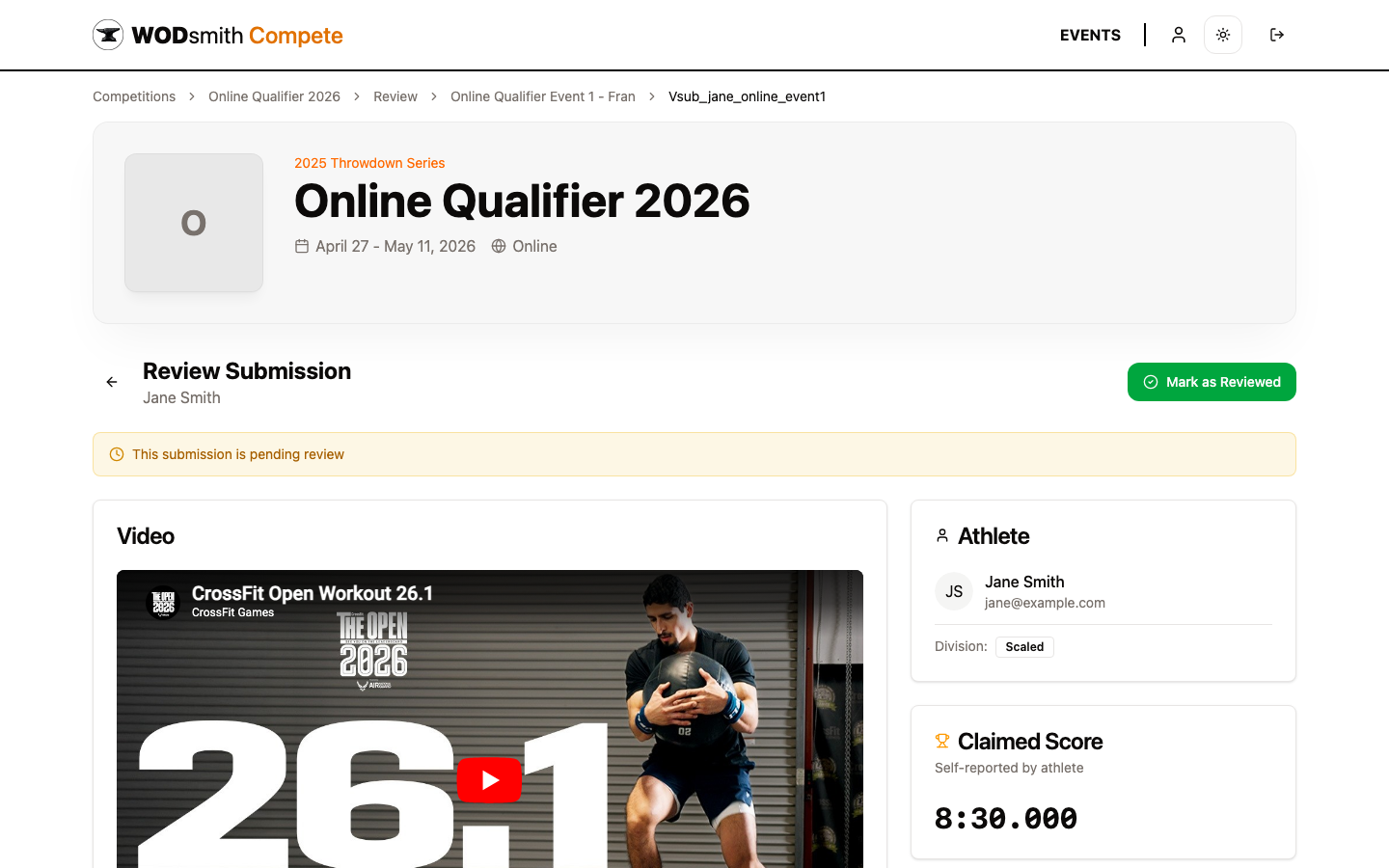
This is the heart of online judging. You can:
- Watch the embedded video (YouTube, Vimeo, WodProof, or WeTime — all play inline)
- Compare the athlete's claimed score with what you see
- Add timestamped notes by clicking the seek-to-note button
- Vote 👍 or 👎 (if the competition uses panel review)
- Apply a penalty (e.g., scale the score by a percentage for a no-rep)
- Adjust the score directly
- Mark the submission as Verified, Adjusted, Penalized, or Invalid
- Once you've made your call, click Mark as Reviewed (top right).
The athlete sees their score update in real time, and the leaderboard reflects the verified result once the organizer publishes the division.
Step 4: Enter an In-Person Score
For in-person competitions, judges with score-input access can submit results from their phone or tablet between heats.
- Open the competition page on the floor device.
- Tap Schedule to find the active heat.
- Use the score-entry interface assigned to your lane (URL provided by the organizer — usually
/compete/{slug}/scoringor an organizer-shared deep link). - Enter the result in the format the workout expects:
| Workout Type | Format | Example |
|---|---|---|
| For Time | mm:ss | 3:45 |
| AMRAP | Rounds + Reps | 8+15 |
| Max Weight | Number | 225 |
- Submit. The score auto-saves and appears on the public leaderboard within seconds.
If you make a mistake, organizers can reopen and correct any score from the Results page — flag the issue rather than trying to overwrite a submitted score.
You've Done It!
Congratulations — you've completed your first WODsmith judging shift. You now know how to:
- Sign up as a volunteer
- Find your review or score queue
- Verify a video submission
- Enter an in-person score
What's Next
- How to review video submissions — deep dive on the verification flow
- How to score in-person events — keyboard tips, common formats
- How to apply a penalty — when and how to adjust a score
Need help? Contact the competition organizer — they can re-issue your invite, change your role, or grant you score-input access.