How to View Broadcasts
See announcements the organizer has sent to athletes.
Viewing Announcements
- Open the competition page.
- Click the Announcements tab.
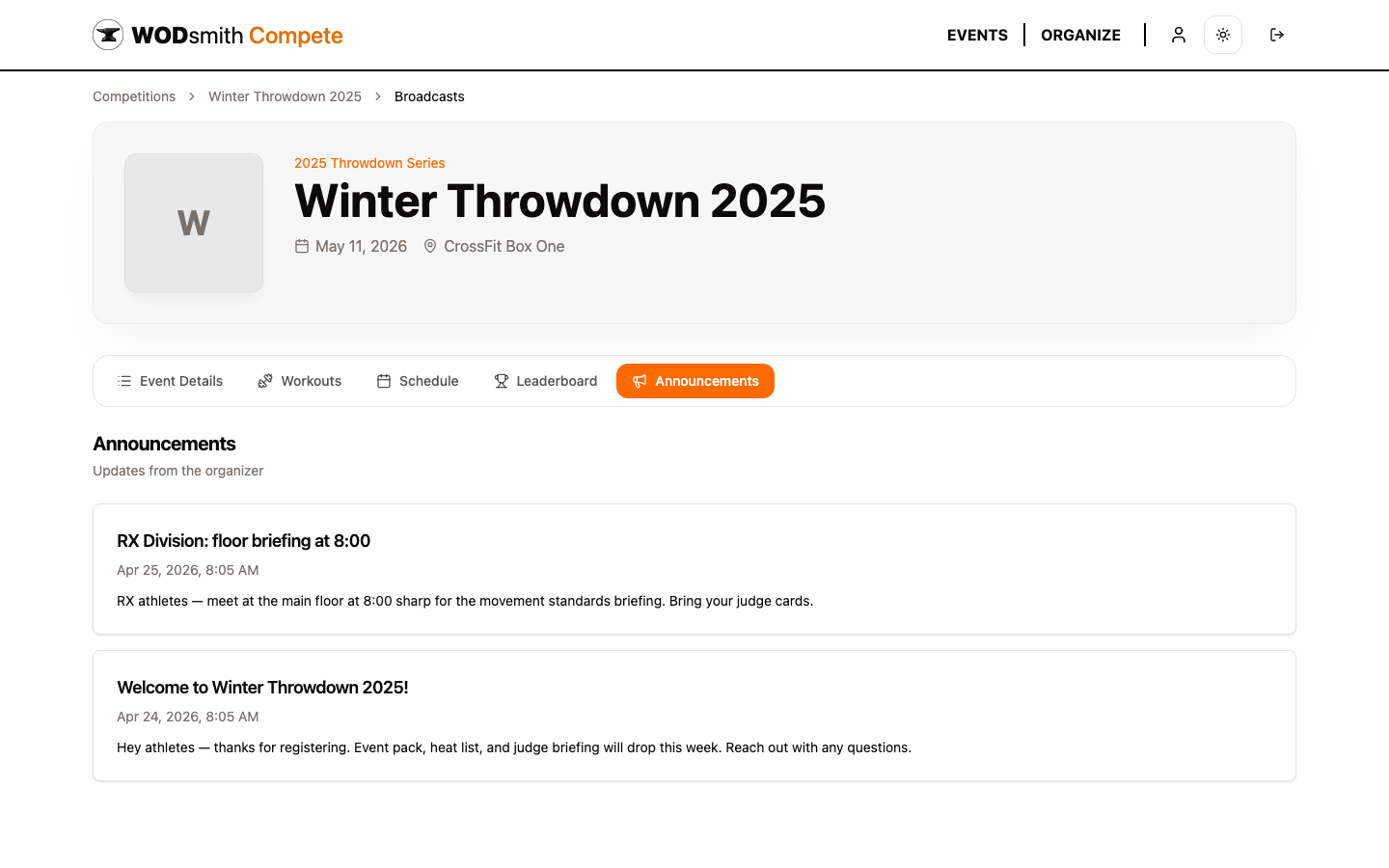
Broadcasts appear in reverse chronological order — newest at the top — showing the title, message body, and timestamp.
If the organizer hasn't posted any announcements yet, you'll see an empty-state message.
Email Notifications
When the organizer sends a broadcast with email enabled, you'll also receive the message in your inbox. The email contains the same title and body as the in-app announcement, plus a link back to the competition page.
If you don't see the emails, check your spam folder and add the organizer's sending domain to your safe senders list.
Audience Filters
Organizers can target broadcasts to specific groups:
- All athletes — everyone who's registered
- By division — only RX athletes, or only Masters, etc.
- All volunteers / by role — only your judges, or only your medical staff
- Pending invites — teammates who haven't yet accepted their invitation
- Public — everyone associated with the competition
You only see broadcasts whose audience includes you. If your team captain mentions a broadcast you didn't get, you may have been filtered out — usually by division or registration question answer.
When Will I Get Broadcasts?
Common moments organizers send broadcasts:
| Phase | Typical broadcast |
|---|---|
| Registration open | Welcome message, what to expect |
| One week out | Heat list published, equipment reminders |
| Day before | Floor plan, parking, check-in time |
| Event morning | Briefings, weather updates, rule reminders |
| During the event | Schedule changes, score corrections, finalist announcements |
| Post-event | Awards, photos, next-event teaser |
Treat the Announcements tab as your primary source of truth — competition information posted in Slack, Instagram, or the host gym's group chat may not match what's official.
See also: How to View Your Schedule | How to Check Standings