How to Check Your Division Standings
View your ranking and per-event scores during a competition.
Steps
- Open the competition page.
- Click the Leaderboard tab.
- Pick your division from the dropdown.
Reading the Leaderboard
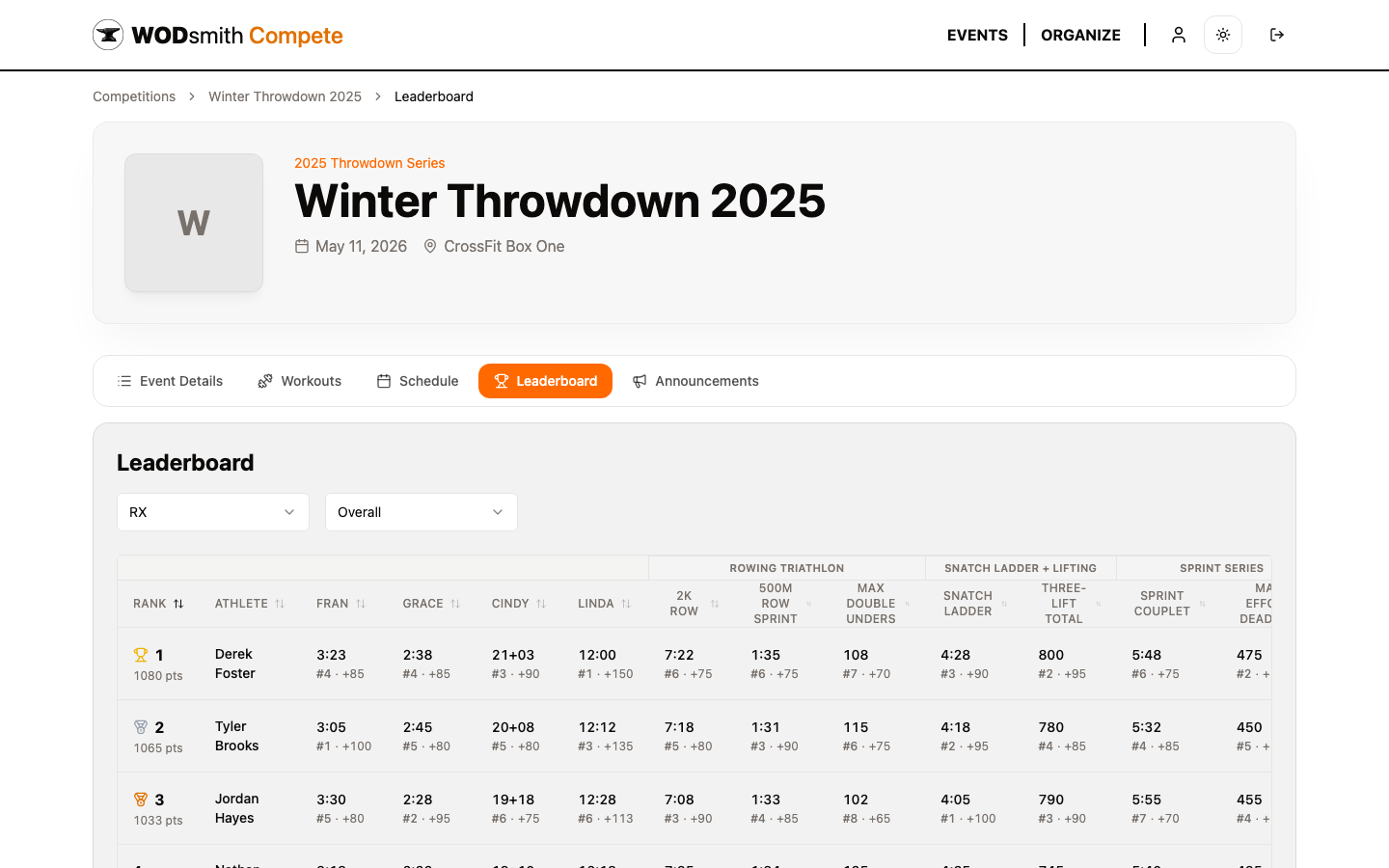
The leaderboard shows one row per athlete, sorted by total points (descending). Each event is a column, and each cell shows that event's score plus the place / point award for that event in that division.
| Column | Meaning |
|---|---|
| Rank | Your overall position in the division (with medal icons for the top 3) |
| Athlete | Competitor name; affiliate appears as subtext |
| Points | Cumulative ranking points across all scored events |
| Per-event columns | Score (e.g., 3:23), and below it #place · +points for that event |
Filtering and Sorting
Above the table:
- Division dropdown — switch between RX, Scaled, Masters, etc.
- Event filter — select a single event to drill in and sort by that event's place
- Overall — return to the cumulative ranking
Click any column header to re-sort by that column.
Real-Time Updates
Scores update as judges submit them. The leaderboard recomputes ranks automatically — no need to refresh the page, though hard-reloading guarantees you have the freshest data.
For online competitions, an event's column populates only after the organizer publishes the division results for that event. Until publication, your own score is visible on your registration page but not on the public leaderboard. This lets organizers wait until all submissions are reviewed before opening the results.
Tiebreakers
When two athletes have identical points:
- The cumulative tiebreaker (typically: more event wins) wins
- If still tied, an organizer-selected head-to-head event breaks the tie
- As a last resort, earlier registration time wins
For multi-round capped workouts, a hidden tiebreaker — fewer capped rounds wins — applies first inside the event itself.
Status Icons
For online competitions, each cell can show a small icon next to the score:
| Icon | Meaning |
|---|---|
| ⏳ Clock | Submission pending review |
| ✅ Check | Verified by a judge |
| ✏️ Pencil | Score was adjusted |
| ⚠️ Alert | Penalty applied |
| ✕ Red X | Submission marked invalid |
The icon links directly to the submission detail page (organizer/cohost view); athletes see it as a status indicator only.
See also: How to View Workout Standards | How to View Your Heat Schedule