How to Edit Competition Settings
Modify competition details, divisions, and configuration after creation.
Prerequisites
- Competition organizer permissions for the team hosting the competition
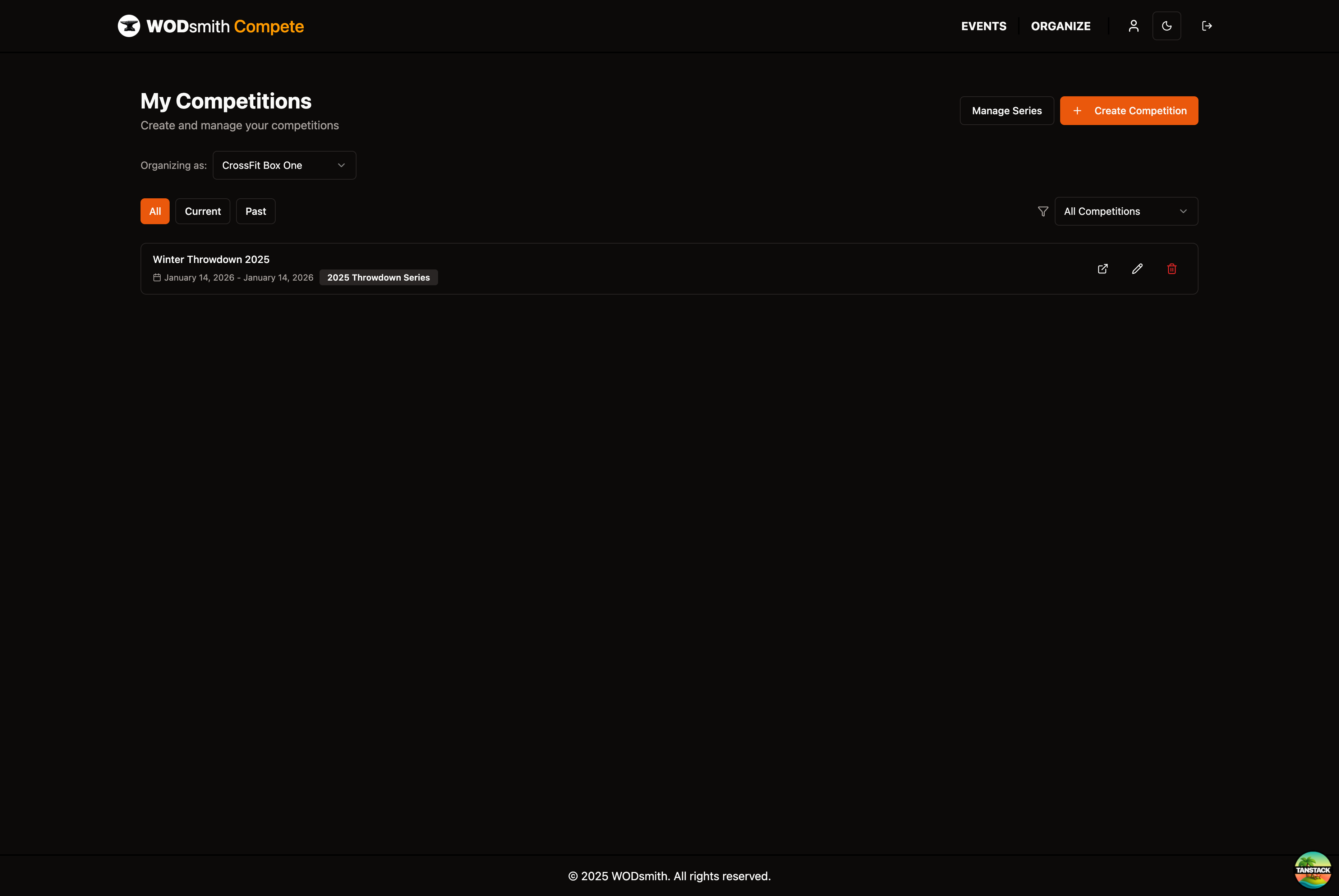
Accessing Competition Management
- Navigate to COMPETE → ORGANIZE
- Find your competition and click Manage
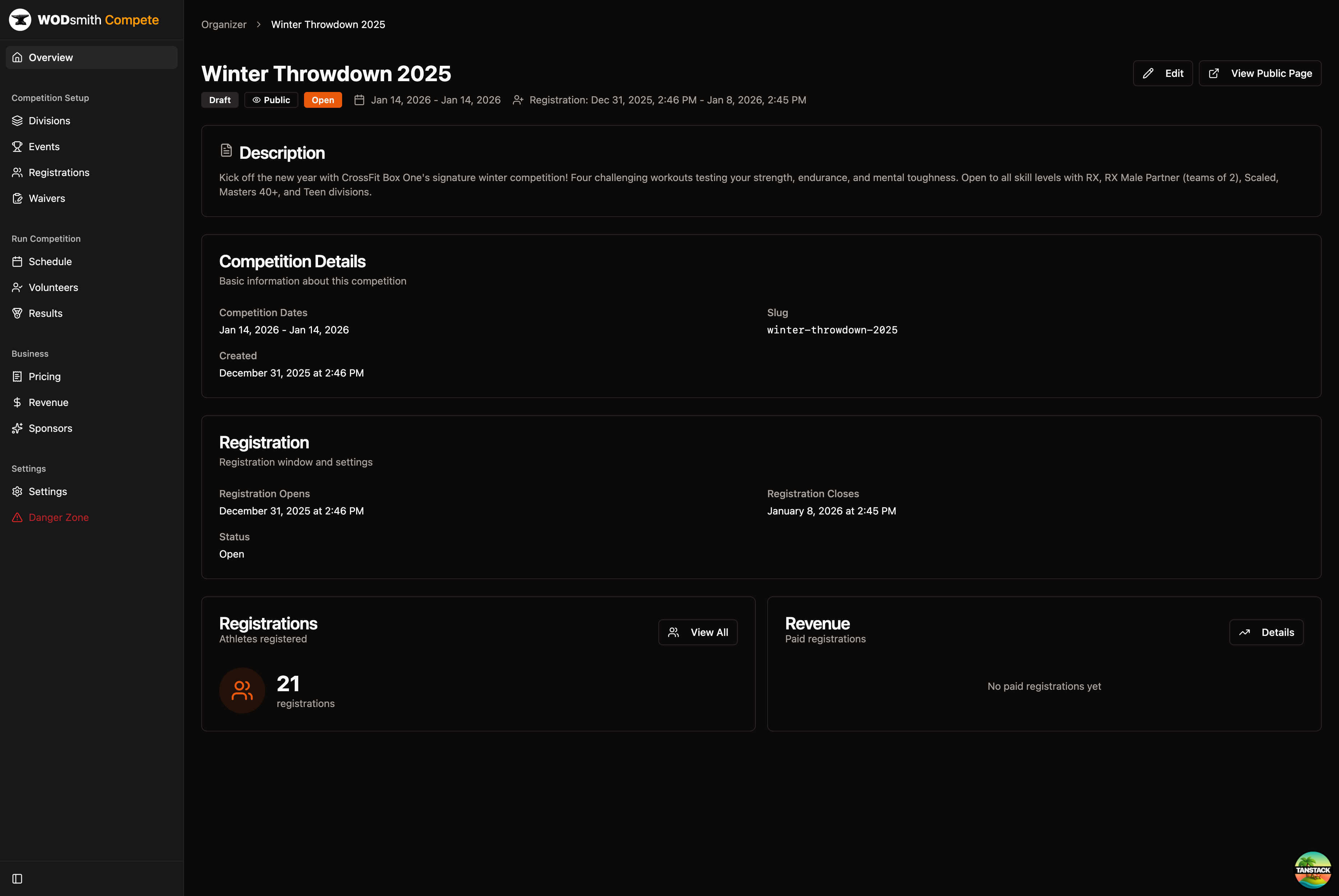
- You'll see the competition overview dashboard
Editing Basic Information
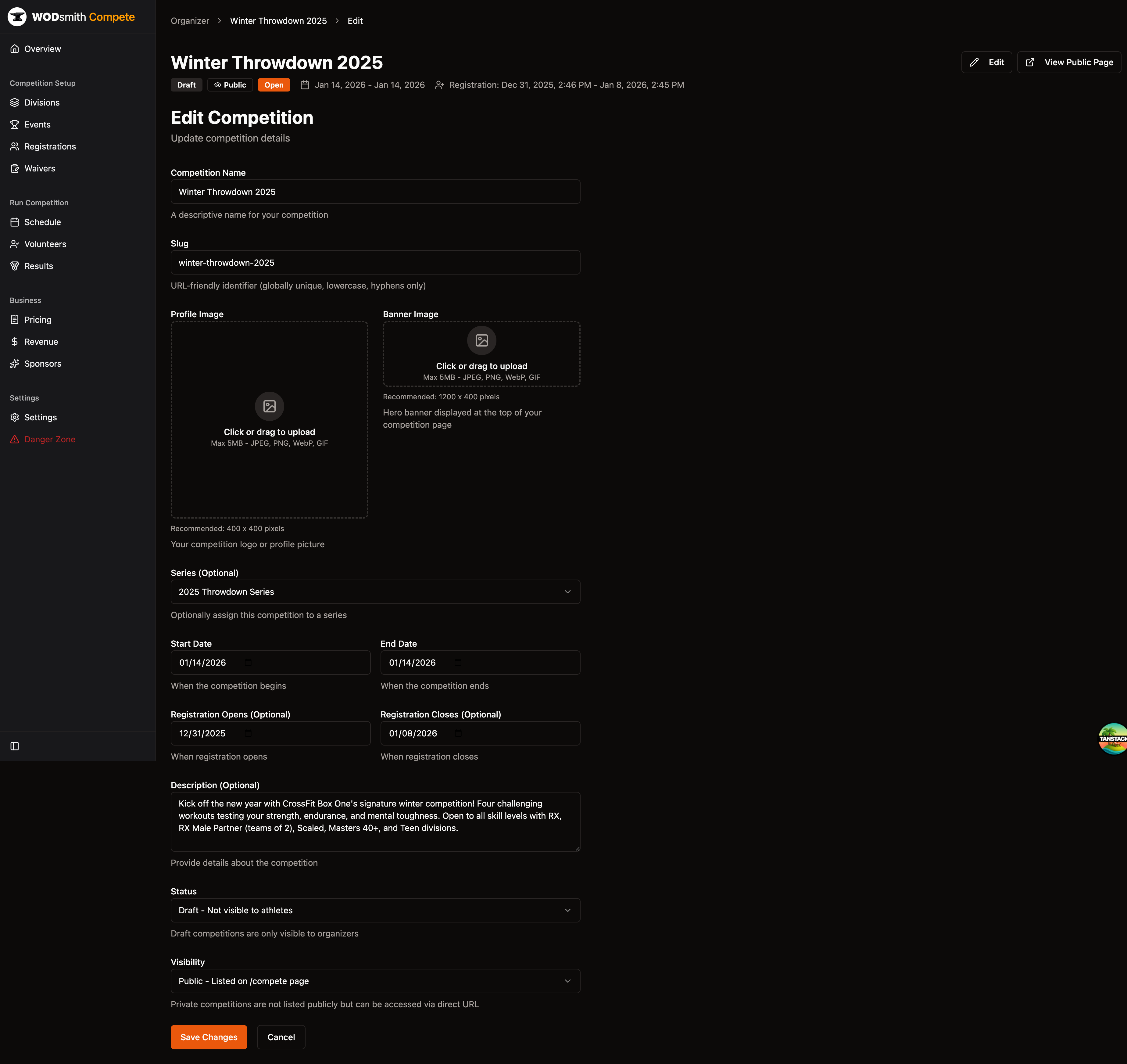
- From the competition overview, click the Edit button
- Update any of these fields:
- Competition name
- Slug (URL identifier)
- Profile image and banner image
- Series assignment
- Start and end dates
- Registration open/close dates
- Description
- Status (Draft or Published)
- Visibility (Public or Private)
- Click Save Changes
Modifying Divisions
Adding a Division
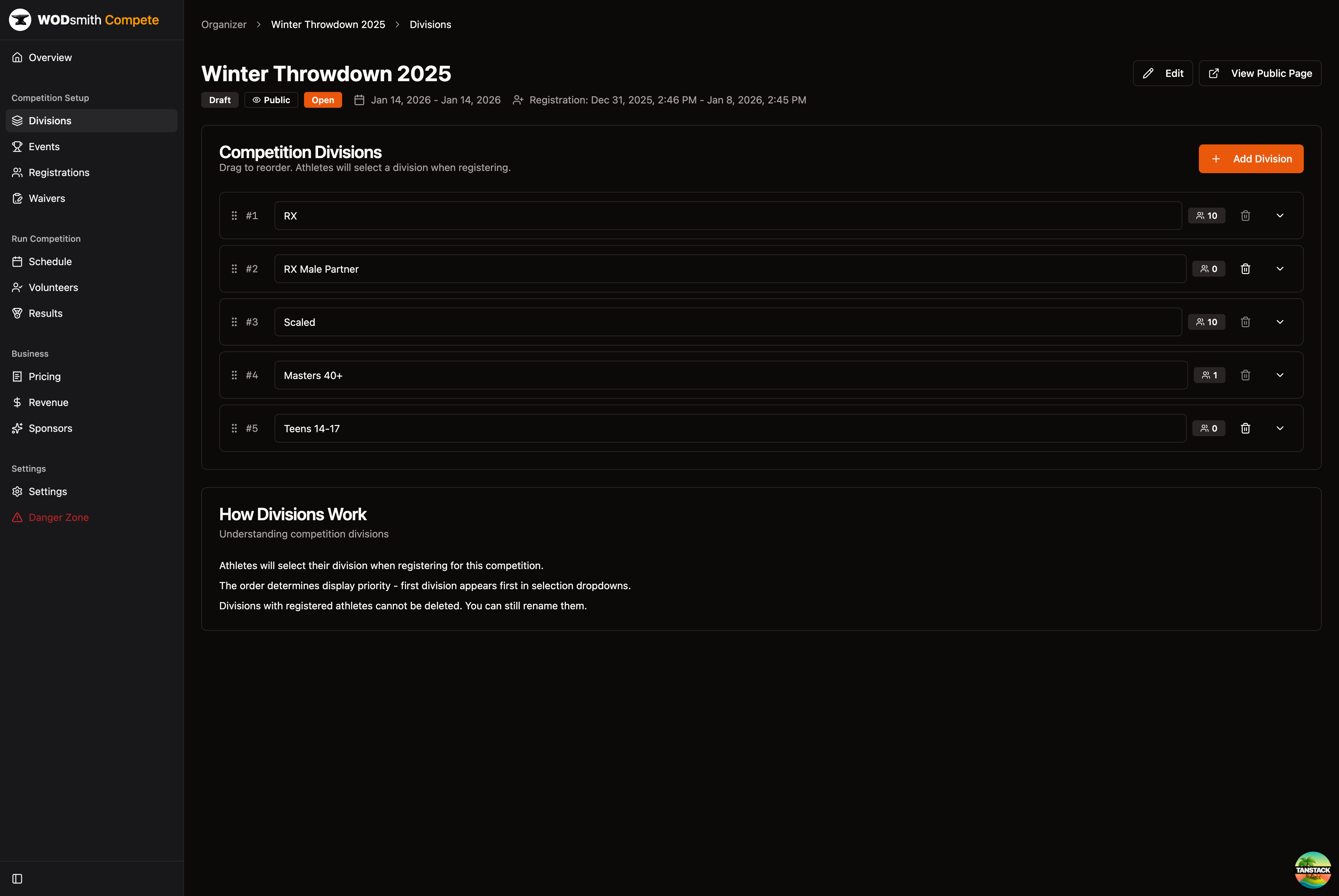
- Go to Divisions in the sidebar
- Click Add Division
- Enter the division name
- Optionally expand the row to add a description
Editing a Division
- Click directly on the division name to edit inline
- Click the expand arrow to edit the description
- Changes save automatically
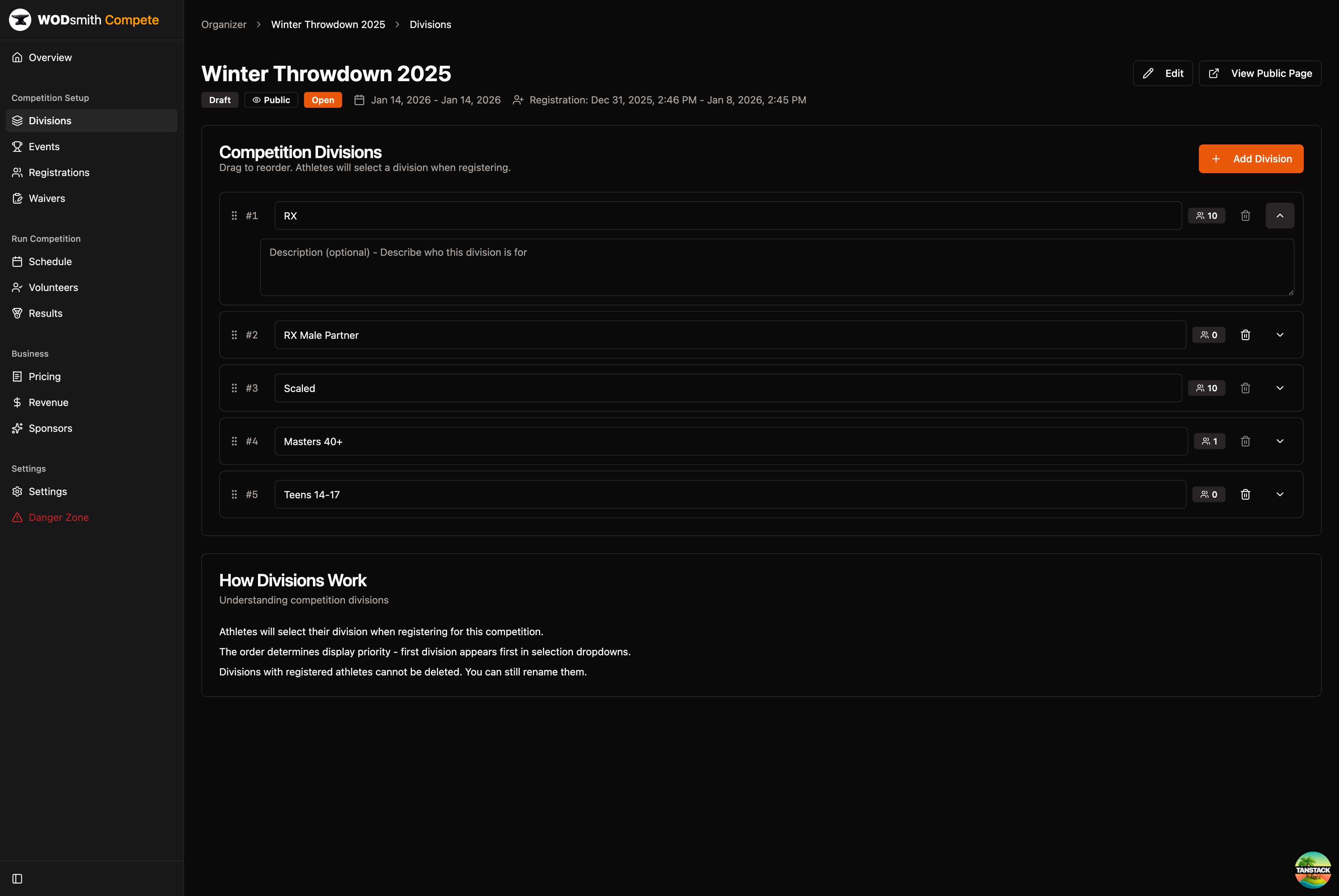
You can drag divisions to reorder them. The order determines how they appear in registration dropdowns.
Divisions with registered athletes cannot be deleted. You can still rename them or update their descriptions.
Updating Events
Adding Events
- Go to Events in the sidebar
- Click Create Event for a new workout, or Add Existing to link an existing workout
- Configure the event details
- Click Save Changes
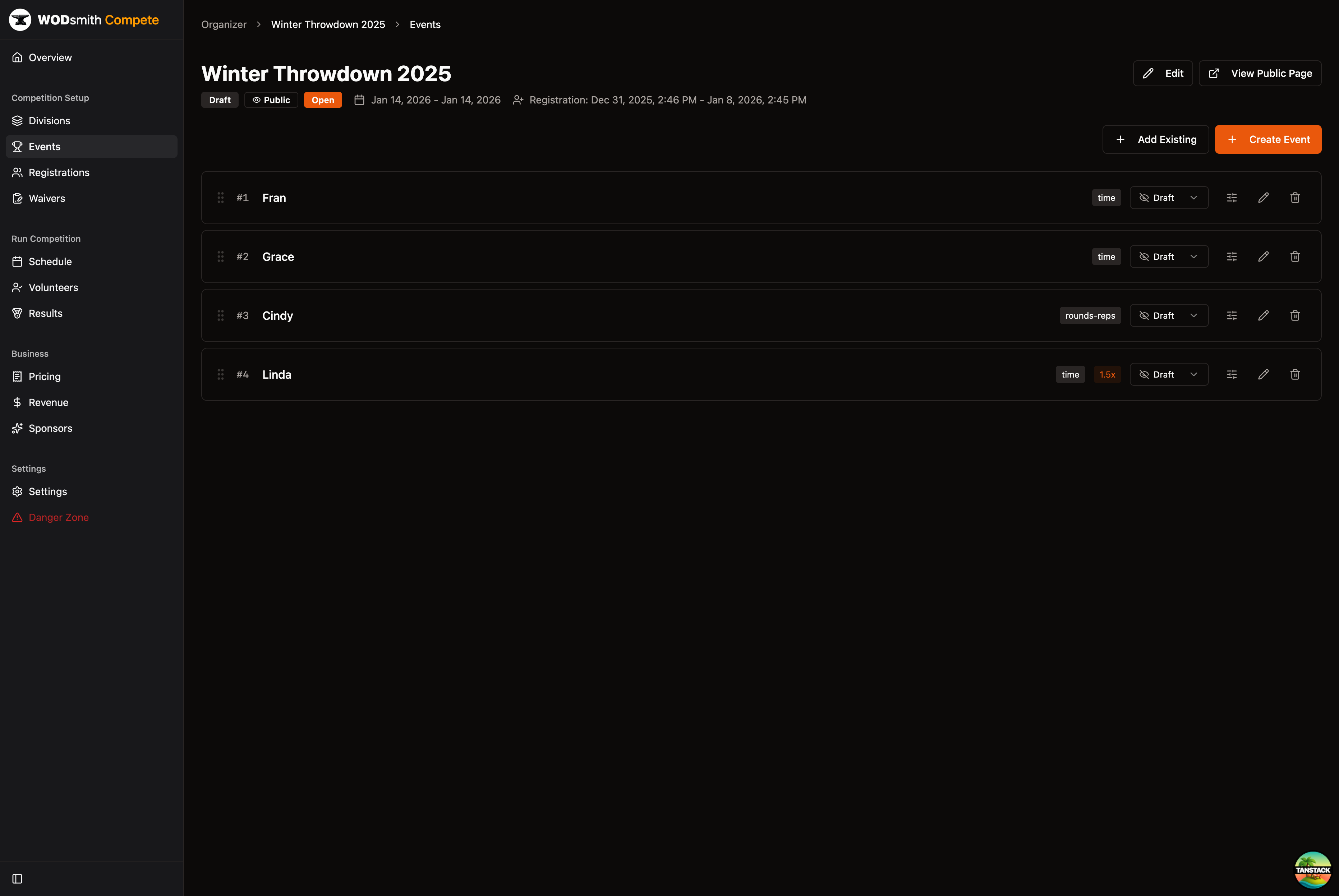
Editing Events
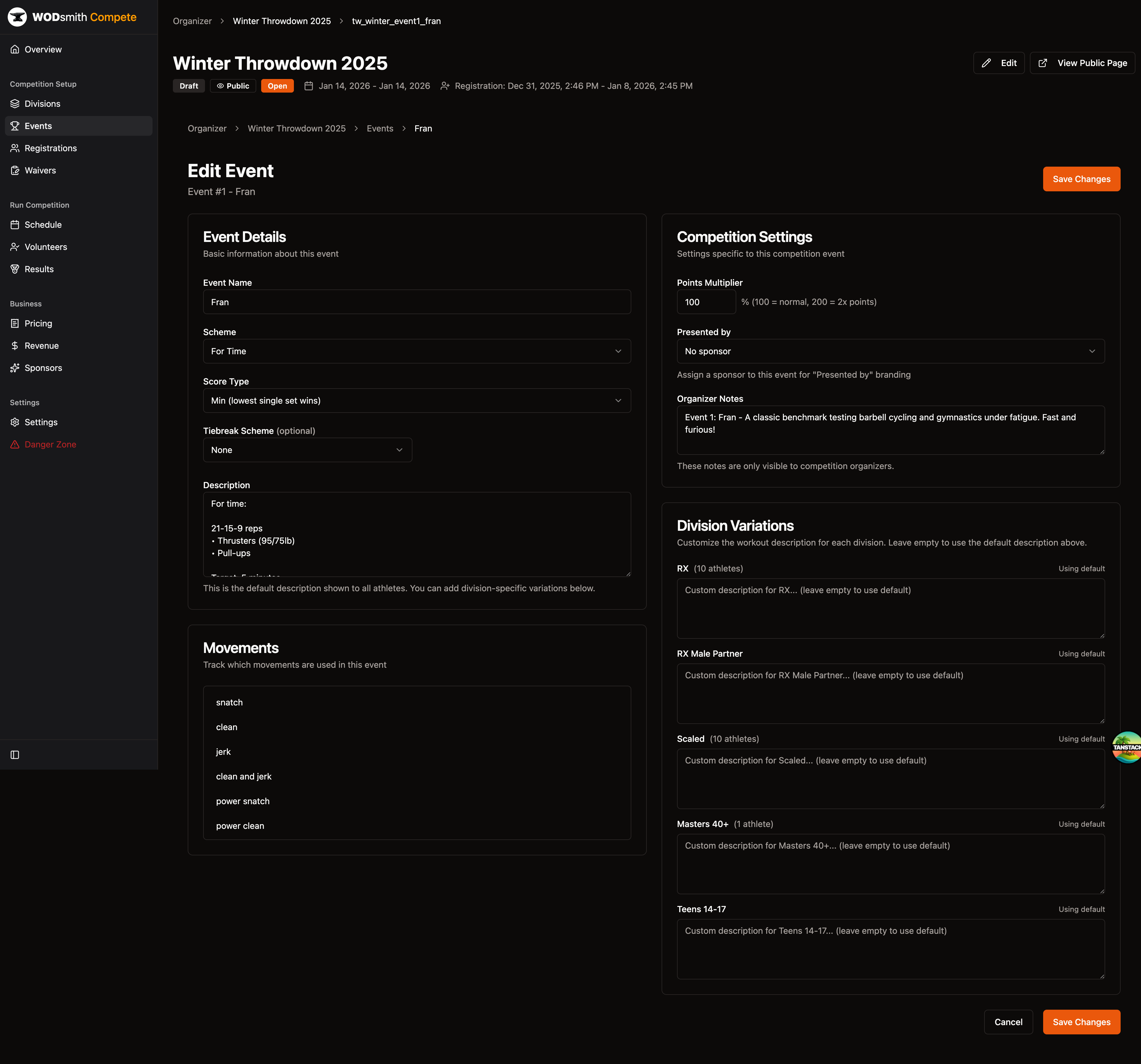
- Click the link icon next to an event to open the edit page
- Modify:
- Event name
- Scheme (For Time, AMRAP, etc.)
- Score type
- Tiebreak scheme
- Description
- Movements used
- Points multiplier
- Sponsor assignment
- Organizer notes
- Division-specific variations
- Click Save Changes
Registration Settings
Registration settings are managed across multiple pages:
Registration Dates
- Click Edit from the competition overview
- Update Registration Opens and Registration Closes dates
- Click Save Changes
Entry Fees (Pricing)
- Go to Pricing in the sidebar under Business
- Connect your Stripe account if not already connected
- Set registration fees per division
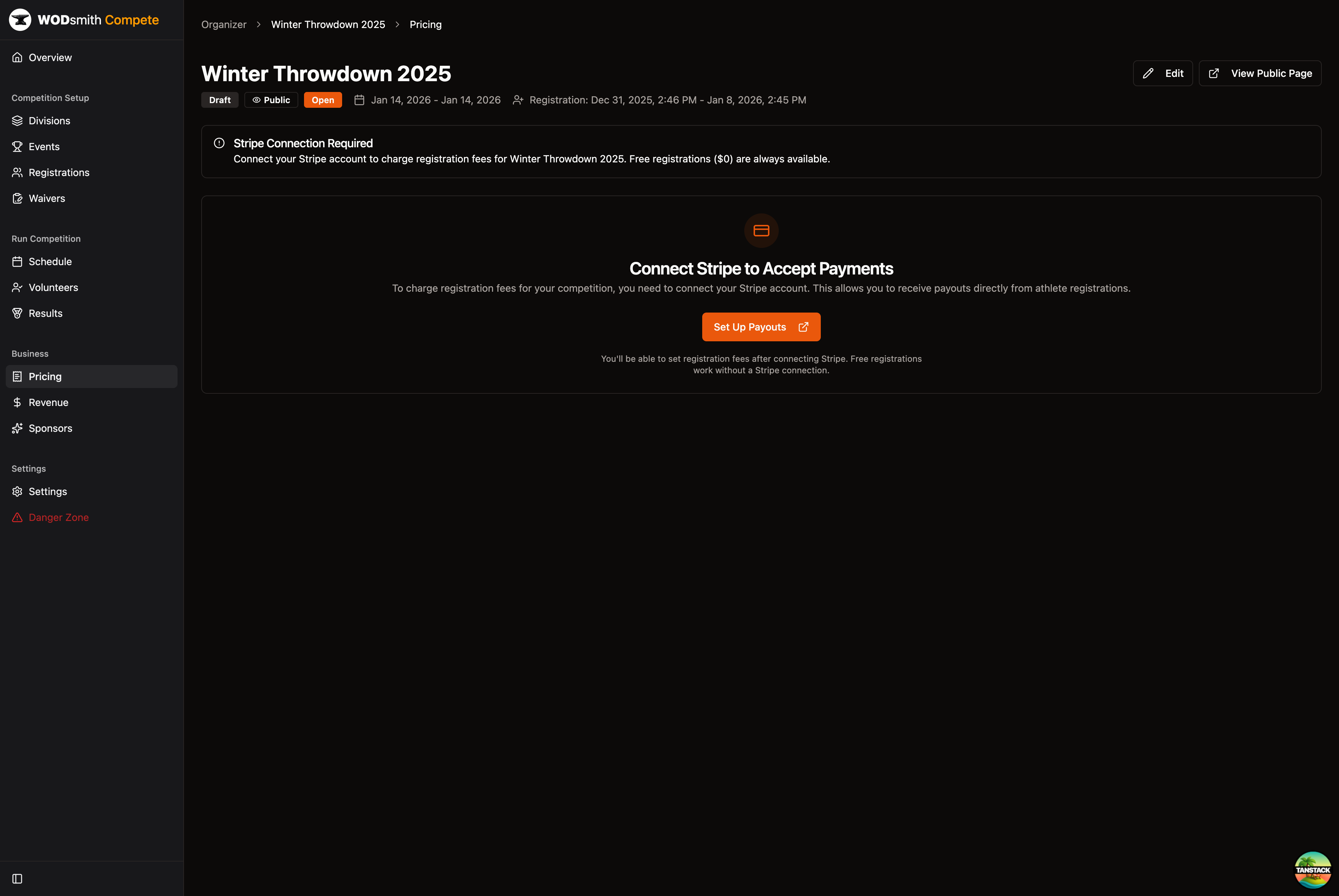
Free registrations ($0) work without a Stripe connection. Paid registrations require Stripe setup.
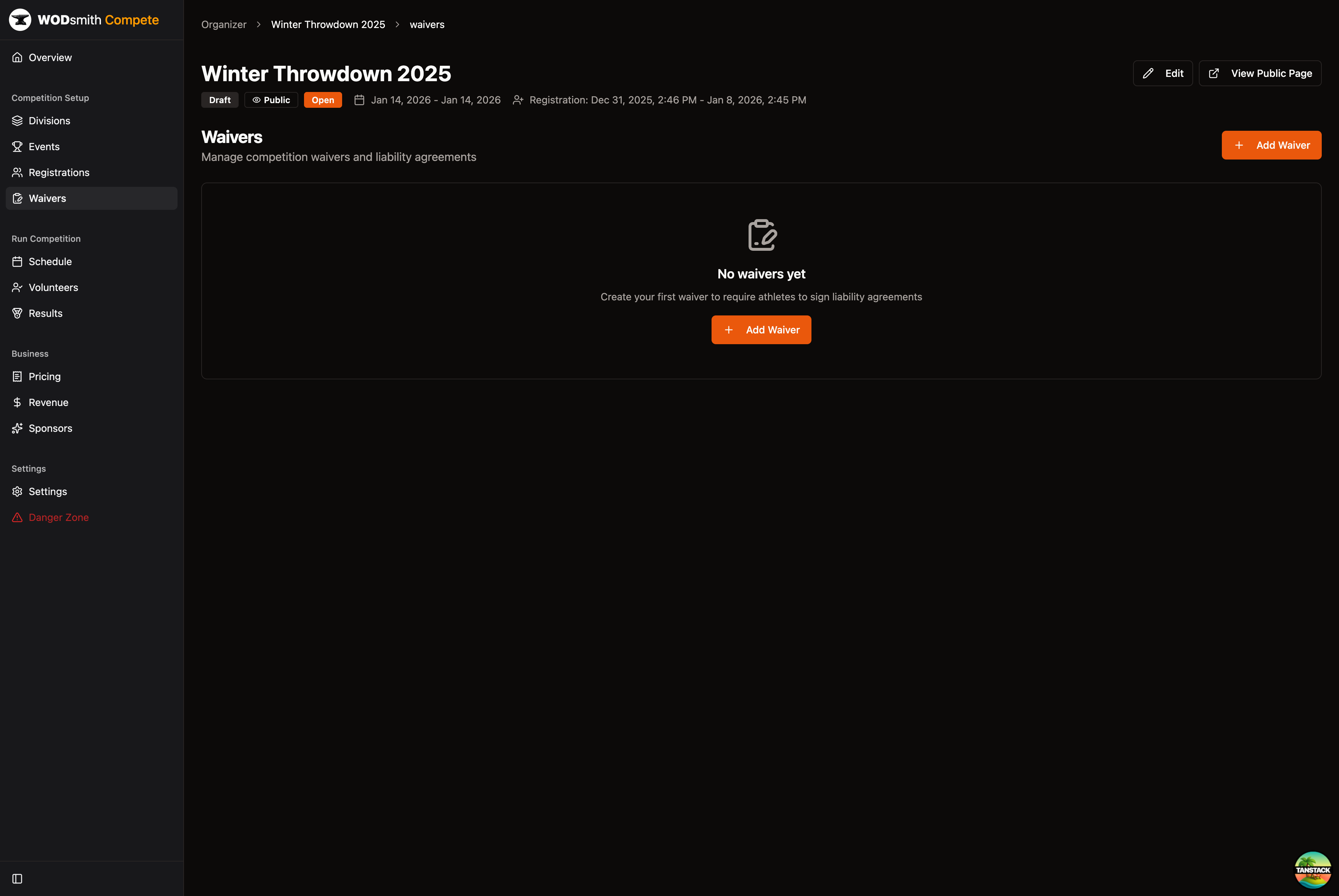
Waiver Requirements
- Go to Waivers in the sidebar under Competition Setup
- Click Add Waiver to create liability agreements
- Athletes must accept waivers during registration
Registration Questions
- Go to Registrations in the sidebar
- Click Add Question to create custom questions
- See How to Create Registration Questions for full details
Changing Competition Status
To control whether athletes can see your competition:
- Click Edit from the competition overview
- Change the Status dropdown:
- Draft - Only visible to organizers
- Published - Visible to athletes
- Change the Visibility dropdown:
- Public - Listed on the /compete page
- Private - Accessible only via direct URL
- Click Save Changes
Use Draft status while setting up your competition. Switch to Published when ready for registrations.
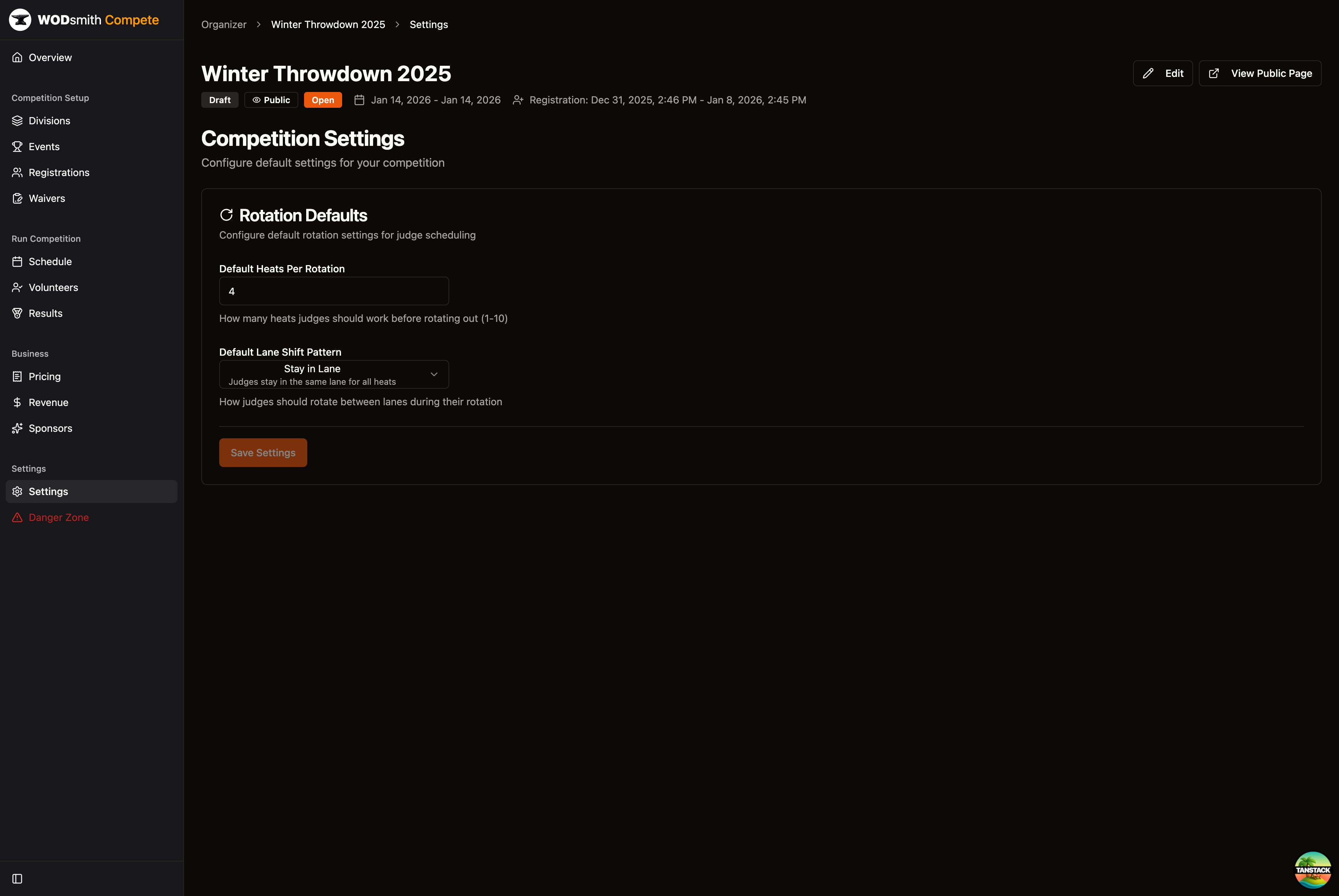
Competition Settings
The Settings page in the sidebar contains operational settings:
- Default Heats Per Rotation - How many heats judges work before rotating
- Default Lane Shift Pattern - How judges move between lanes
Danger Zone
The Danger Zone page allows permanent deletion of a competition.
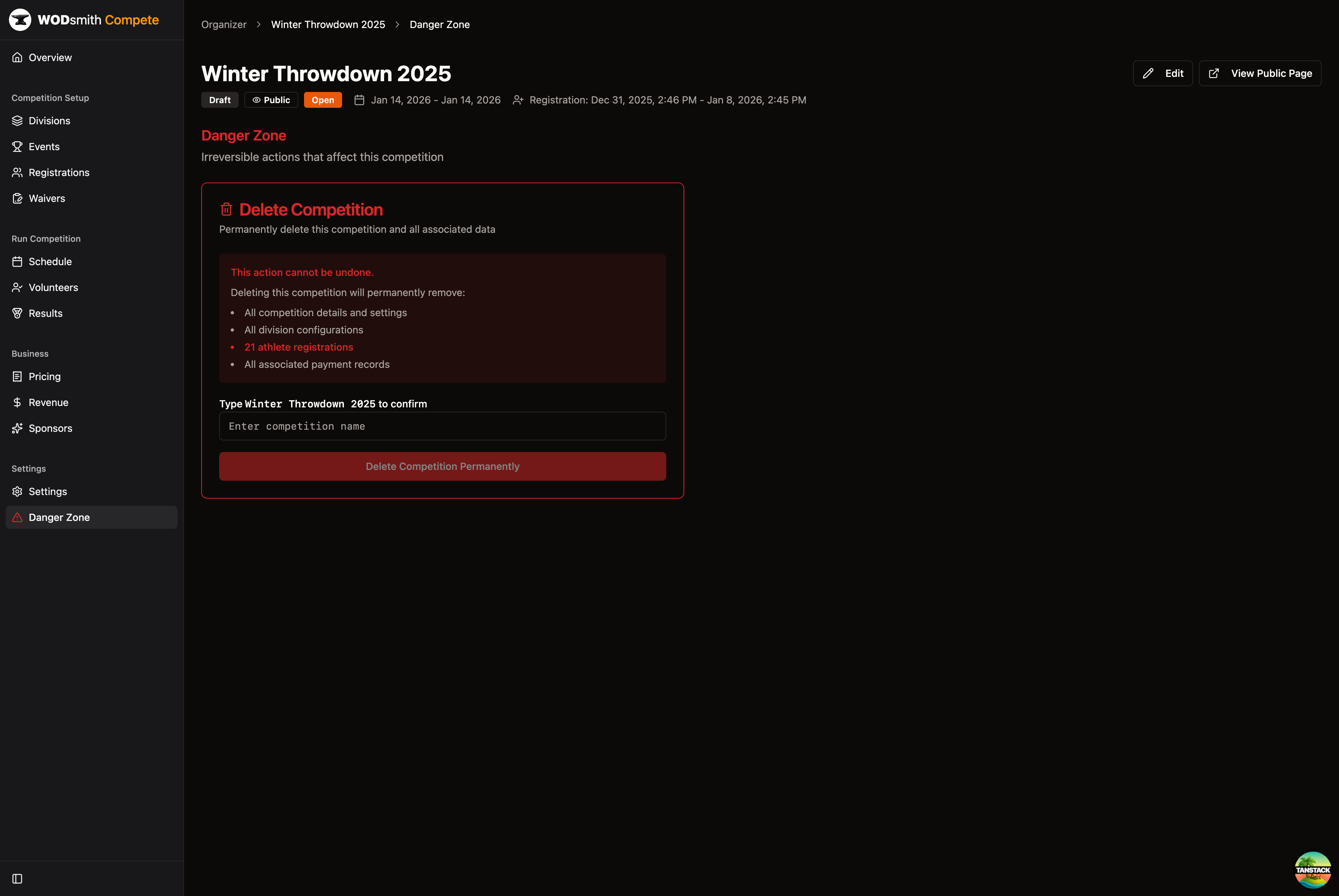
Deleting a competition permanently removes all data including registrations and payment records. This action cannot be undone.
See also: Competition Settings Reference