How to Run Event Day
Manage scoring, leaderboards, judges, and broadcasts during your competition.
Prerequisites
- Competition with events created and divisions configured
- Heats scheduled (in-person) or submission windows open (online)
- Volunteers approved with the appropriate roles
In-Person Score Entry
Accessing Score Entry
- Open your competition from ORGANIZE.
- Click Results in the sidebar (under "Run Competition").
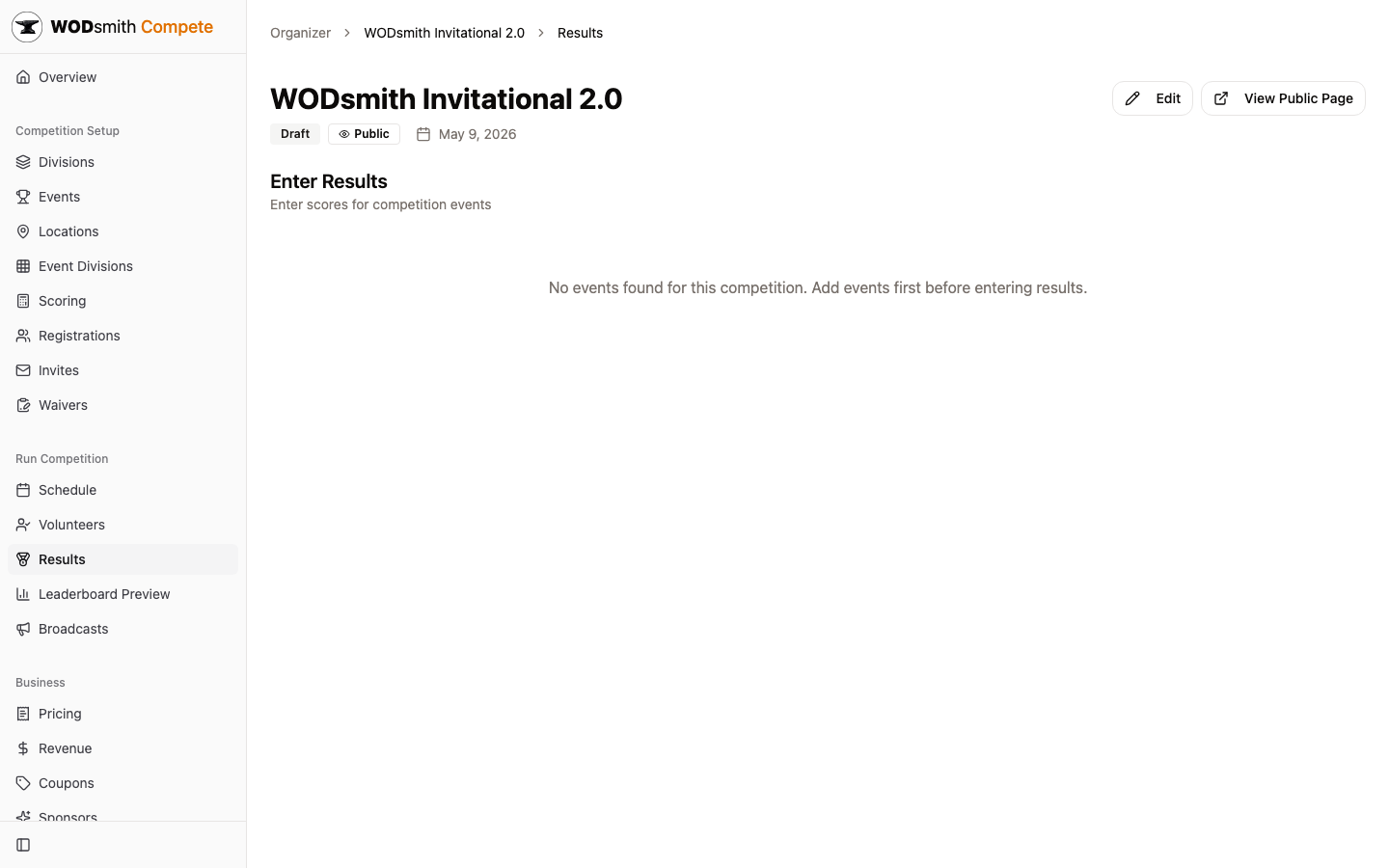
The Results page is the per-event grid where you (and any judges with score-input access) enter live scores.
Score Entry Interface
The grid shows:
- Event selector — pick which event to score
- Division filter — narrow to RX, Scaled, etc.
- Score format hint — reminder of the expected input (Time, Reps, etc.)
- Heat sections — athletes grouped by their heat assignment
Entering Scores
- Pick the event from the dropdown.
- Find the athlete in their heat row.
- Type the score in the input field.
- Scores auto-save as you type — the live "Parsed as: X" preview confirms how WODsmith reads your input (green = valid, red = error).
Score Entry Formats
| Workout Type | Input | Examples |
|---|---|---|
| For Time | mm:ss | 3:45, 12:30, 1:02:34.567 |
| AMRAP | rounds+reps | 8+15, 12+0 |
| Max Weight | number | 225, 185.5 |
| For Time (capped) | mm:ss or cap | 4:32, cap (then enter reps completed) |
Status Overrides
When an athlete didn't finish or was DQ'd, change the status dropdown next to the score:
dnf— did not finishdns— did not startdq— disqualifiedwithdrawn— pulled outcap— auto-set when input ≥ time cap
Terminal statuses collapse the score input — leave it blank.
Online Submission Review
For online competitions, the Results sidebar item changes to Submissions and surfaces every video submission grouped by event:
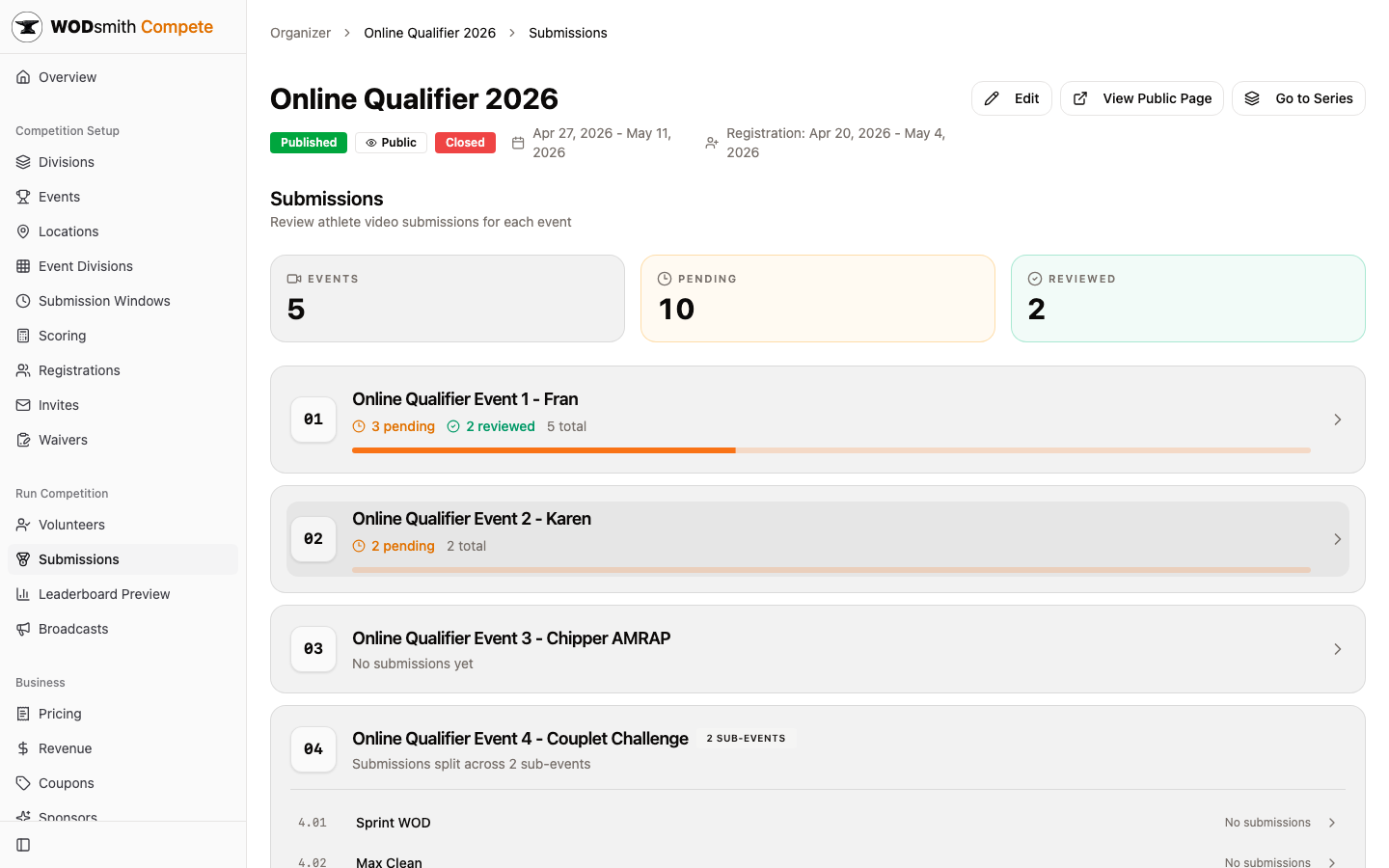
Each event row shows pending / reviewed / total counts and a progress bar. Click any event to see its submissions and open individual videos in the verification flow at /compete/organizer/{competitionId}/events/{eventId}/submissions/{submissionId}.
Sub-events nest under their parent event. The parent itself doesn't carry scores — scoring happens at the leaf level — but the parent card aggregates the child counts for at-a-glance progress.
You can delegate this work to volunteers — see Managing Judges below.
The Public Leaderboard
Athletes and spectators see a live leaderboard on the public competition page:
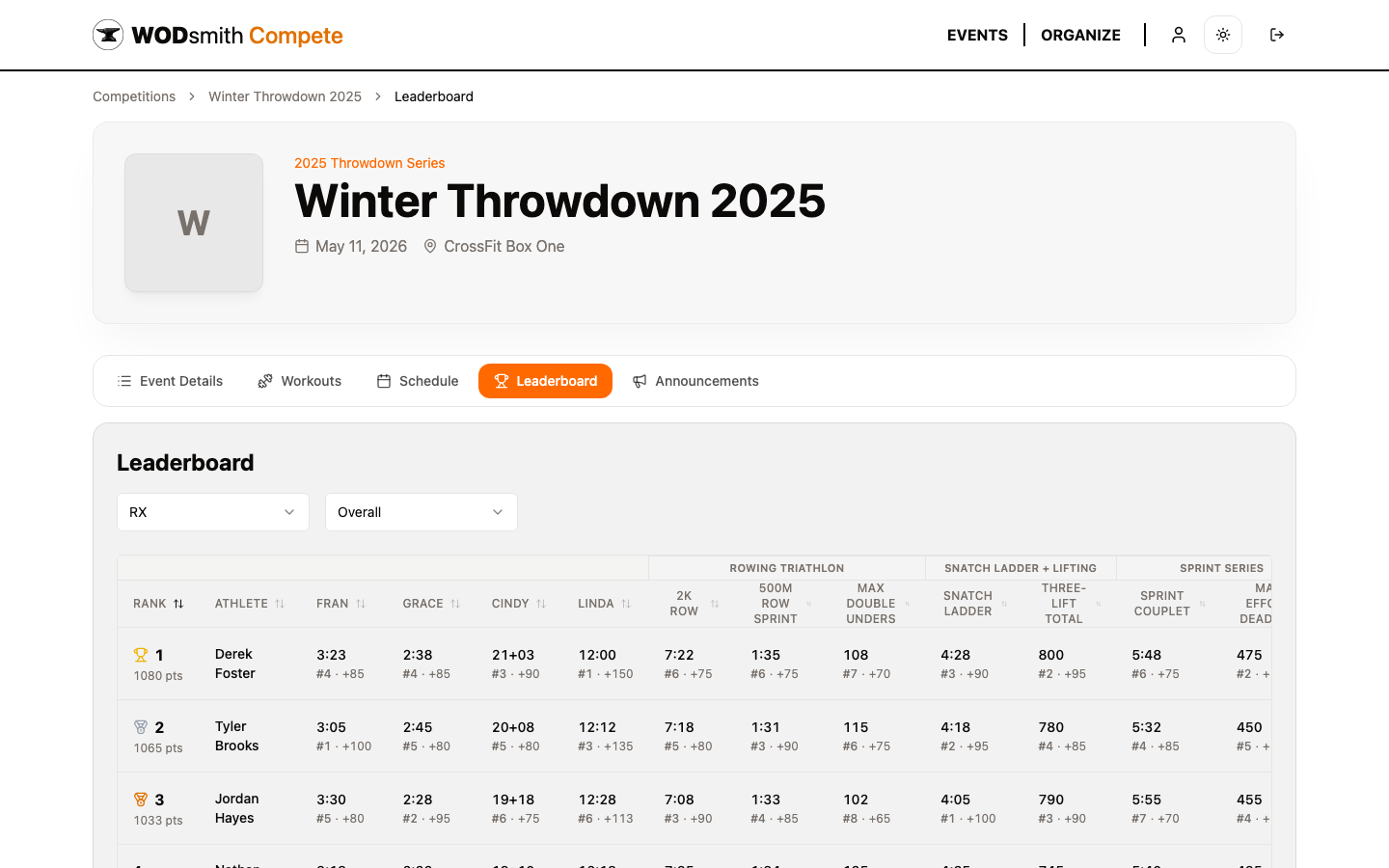
It updates in real time as judges submit or verify scores. Rankings recompute automatically.
For online competitions, scores only appear once you publish the division for that event. From the Results page, toggle each (event, division) pair from Draft to Published to release results progressively — for example, publish RX once all RX videos are reviewed without waiting on Scaled.
Leaderboard Preview (organizer-only)
Before publishing, use the Leaderboard Preview sidebar link to see the full leaderboard as if every score were published. This includes:
- Scores on draft events
- Unpublished division results
- Every event as a column (no division filtering)
Use this to sanity-check the standings before flipping the public leaderboard. Cohosts with leaderboardPreview permission can see the preview too.
Managing Judges and Volunteers
The Volunteers Tab
- Click Volunteers in the sidebar.
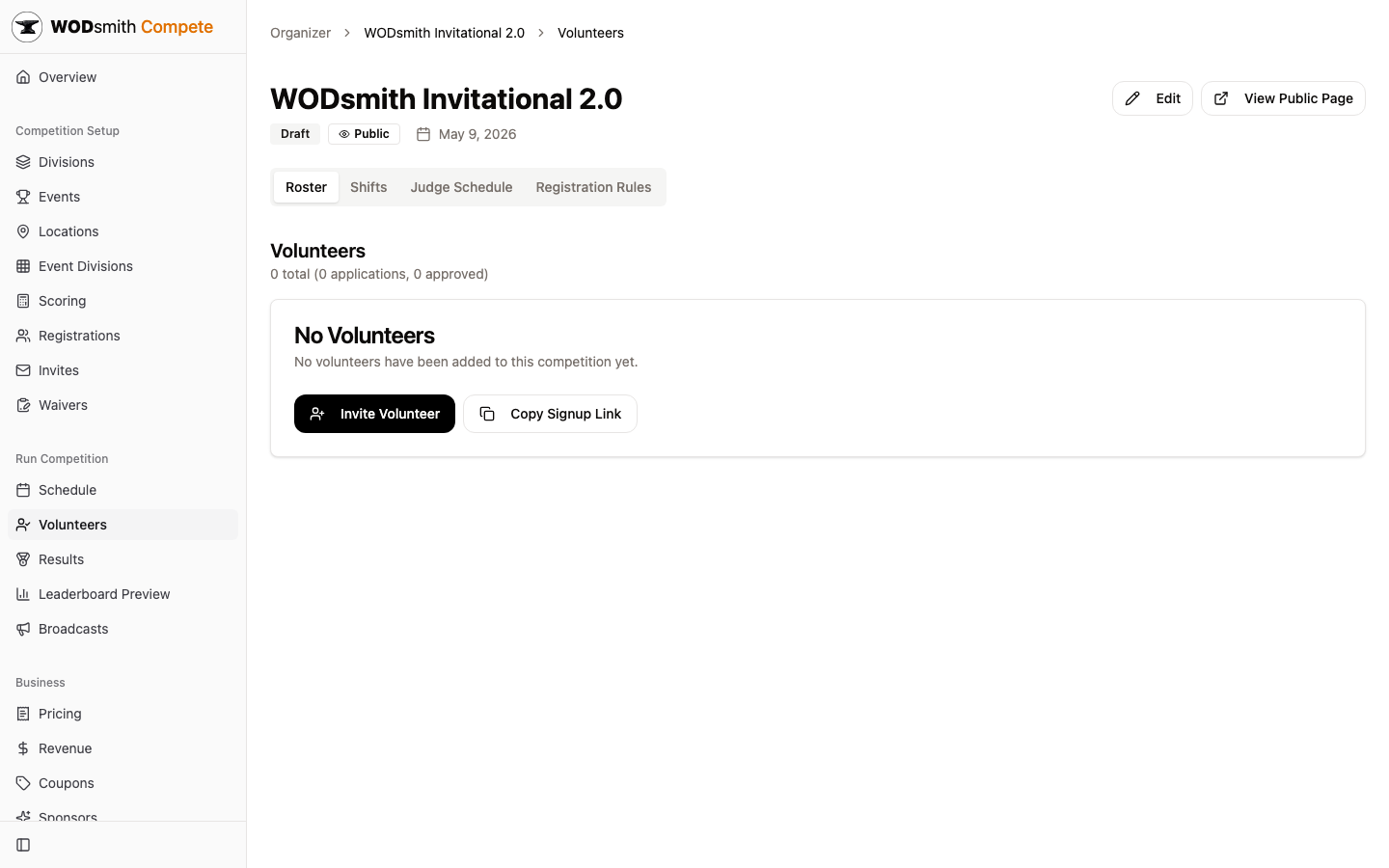
- The page splits into four tabs: Roster, Shifts, Judge Schedule, Signup Questions.
Roster
The roster lists confirmed volunteers with their roles. From here you can:
- Invite Volunteer — send a direct invite via email
- Copy Signup Link — share a public signup URL
- Approve / activate applications
- Grant score-input access — the entitlement that unlocks the Review queue (online) or score-entry views (in-person) for that volunteer
A volunteer needs score-input access on the competition team to act as a judge.
Judge Scheduling
The Judge Schedule tab is the rotation grid. You set:
- Default Heats per Rotation — how many heats before judges shift lanes
- Lane Shift Pattern — Stay, Shift Right, Random
- Heat Buffer — minimum heats between a judge's rotations
- Per-judge overrides — drag judges onto specific lane/heat cells
Click Publish Rotations when ready. Judges see their assignments on their Schedule view; they can't see them until you publish.
Use View printable schedule for paper event-day copies. Choose Master grid to print every heat and lane with its judge, team, and athlete roster, or Judge packets to print all personal run sheets at once. You can also select one judge before printing a replacement copy. Each personal sheet includes heat time, venue, lane, team, athletes, division, and workout brief.
Broadcasts During the Event
Broadcasts are the fastest way to reach all athletes, all volunteers, or just one division.
- Click Broadcasts in the sidebar.
- Compose: title, body, audience (all athletes / by division / volunteers / public), optional question filters.
- Preview recipient count before sending.
- Click Send Broadcast.
Athletes see broadcasts on their Announcements tab and (if email is enabled) in their inbox. Use these for floor-briefing reminders, schedule changes, score corrections, weather updates, and post-event awards announcements.
Handling Ties
Default tiebreakers, in order:
- Total points across events
- Tiebreaker scores (per-event tiebreak field)
- For multi-round capped workouts: fewer capped rounds wins
- Earlier registration time (last resort)
Configure the per-event tiebreak field from the event detail page. Set it before scoring starts — backfilling tiebreakers across already-entered scores is messy.
See also: How to Manage Registrations | How to Schedule Heats | How to Send Broadcasts