How to Create Registration Questions
Add custom questions to collect additional information from athletes during registration.
Prerequisites
- Competition organizer permissions
- Competition with registration enabled
Adding a Question
- Open your competition from the Organizer dashboard
- Click Registrations in the sidebar
- Click Add Question in the Registration Questions section
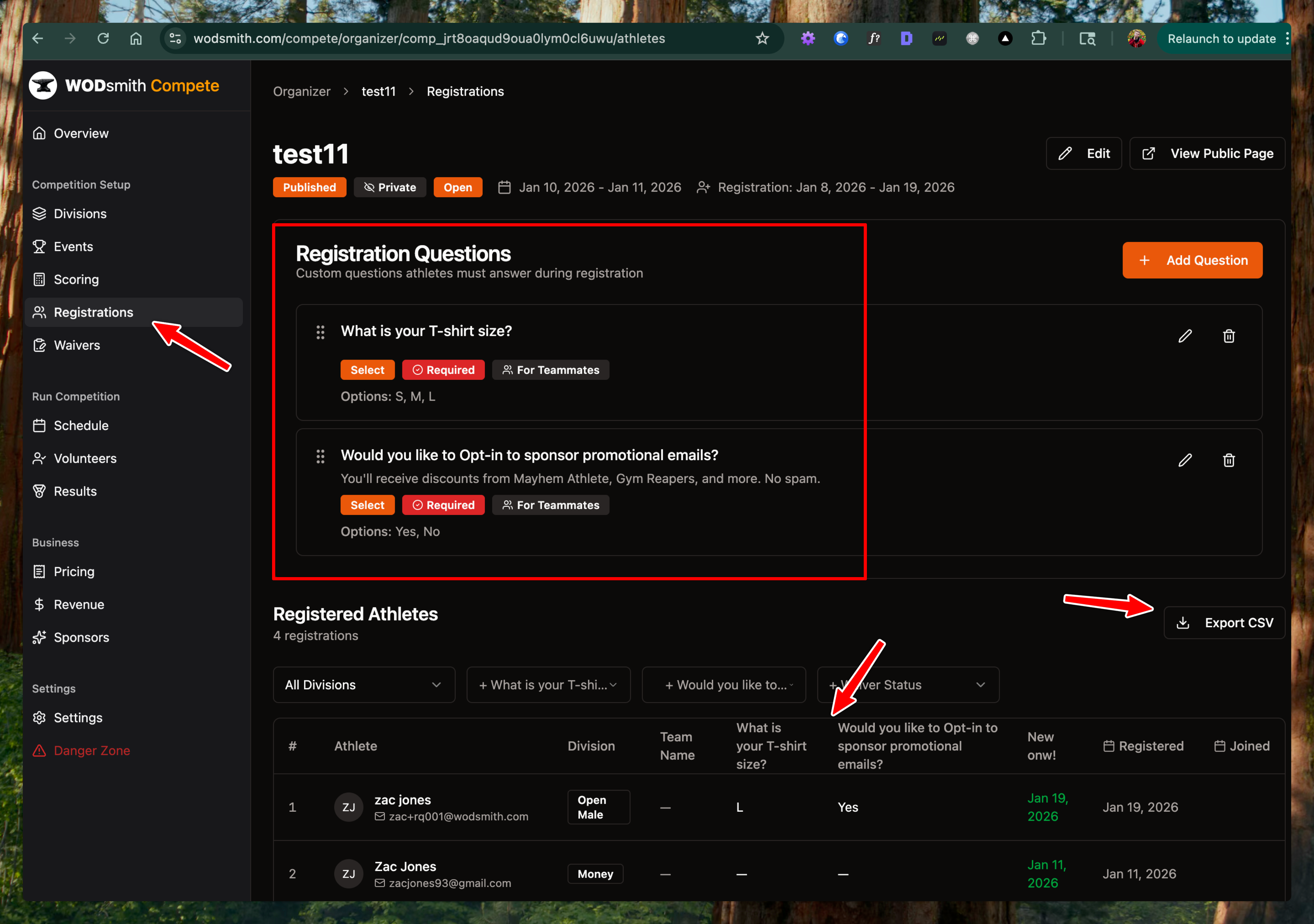
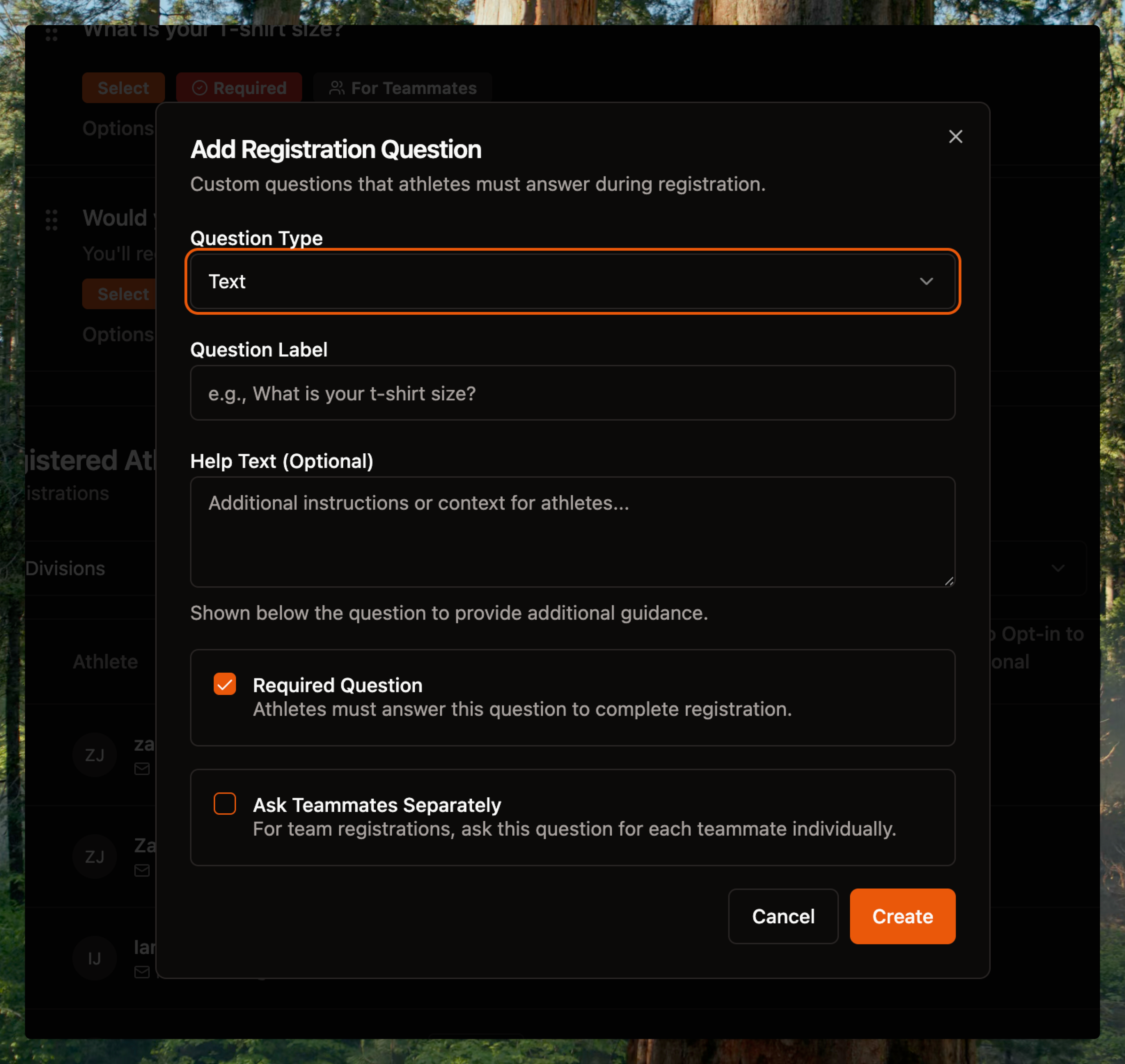
- Enter the question text
- Select a question type:
- Text - Free-form text response
- Select - Dropdown with predefined options
- Number - Numeric input only
- Configure question options (see below)
- Click Save
Question Types
Text Questions
Use for open-ended responses like emergency contact info or dietary restrictions.
Select Questions
Use for predefined choices. After selecting this type:
- Add each option (e.g., "S", "M", "L", "XL" for t-shirt sizes)
- Athletes will see a dropdown during registration
Common uses:
- T-shirt sizes
- Opt-in/opt-out choices (Yes/No)
- Skill level selection
Number Questions
Use when you need numeric data like age or years of experience.
Question Options
Required
Check Required to make the question mandatory. Athletes cannot complete registration without answering required questions.
Ask Teammate Separately
For team divisions, this option controls who answers the question:
- Unchecked - Team captain answers for all teammates during registration
- Checked - Each teammate answers individually when accepting their team invite
Use this for personal information like t-shirt size where each teammate needs to provide their own answer.
Reordering Questions
Drag questions using the handle on the left to change display order. Questions appear to athletes in this order during registration.
Editing and Deleting Questions
- Click the pencil icon to edit a question
- Click the trash icon to delete a question
Caution:
Deleting a question removes all collected answers. Consider whether you need to export the data first.
Viewing Registration Answers
Answers appear as columns in the Registered Athletes table:
Each registration question becomes a filterable column showing athlete responses.
Filtering by Answers
Filter registrations by question answers:
- Click the dropdown for any question column (e.g., "What is your T-shirt size?")
- Select a value to filter by
This helps segment registrations—for example, filter to "Large" to see all athletes needing large t-shirts.
Exporting Registrations
Export all registration data including question answers:
- Click Export CSV in the Registered Athletes section
- The downloaded file includes all standard fields plus a column for each question
Use exports to:
- Share sponsor opt-in lists with partners
- Generate merchandise orders by size
- Create check-in sheets with custom data
How Athletes See Questions
During registration, athletes see your questions after selecting their division:
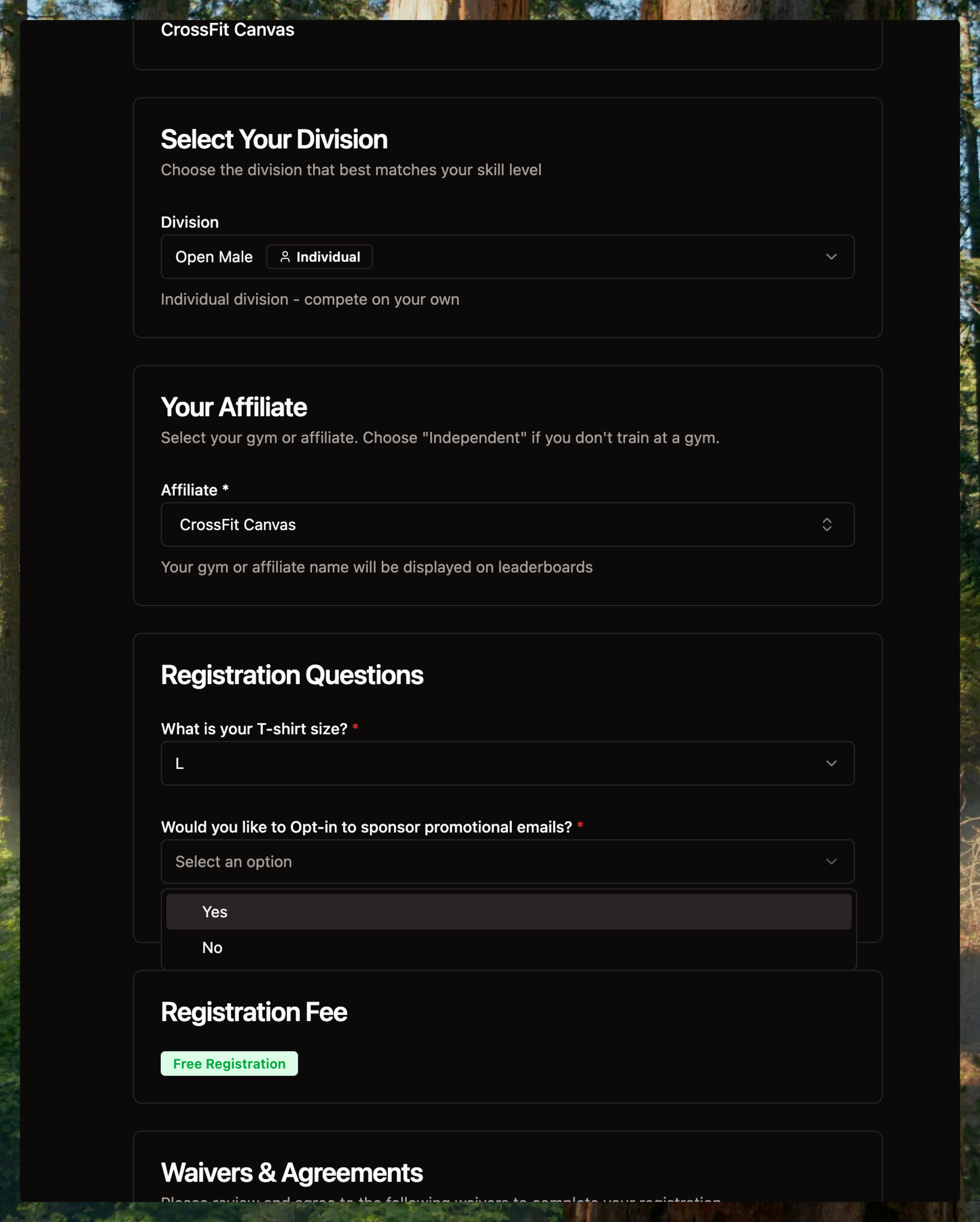
Required questions show a red asterisk. Select questions display as dropdowns with your predefined options.
See also: How to Manage Registrations