How to Schedule Heats
Organize athletes into heats and create your event day schedule.
Prerequisites
- Competition with registrations
- Events configured
Accessing the Schedule
- Open your competition from ORGANIZE
- Click Schedule in the sidebar under "Run Competition"
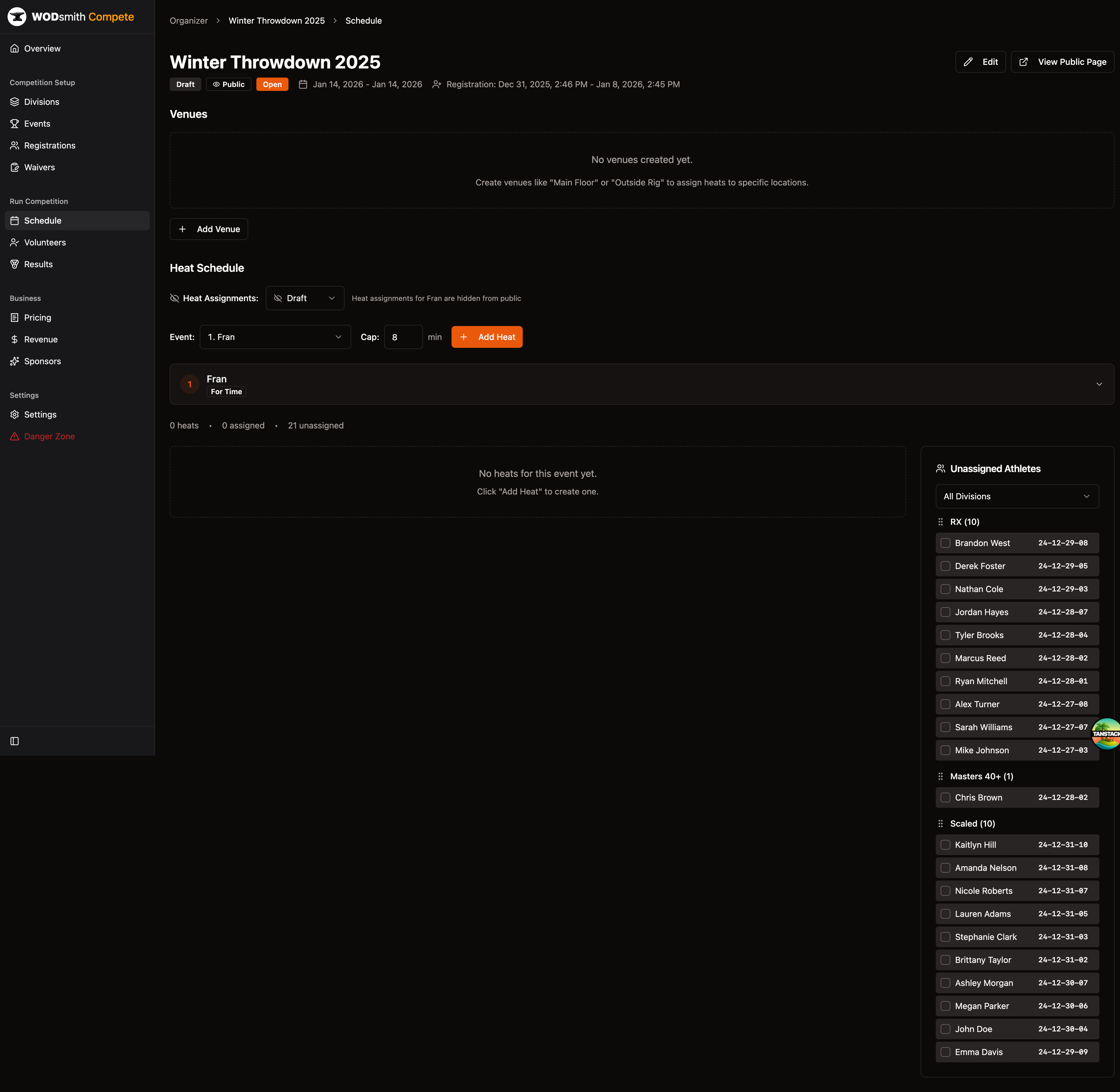
Creating Venues
Before creating heats, set up your venues (workout stations):
- Click Add Venue in the Venues section
- Enter venue details:
- Name - e.g., "Main Floor", "Outside Rig"
- Number of Lanes - Maximum athletes per heat
- Transition Time - Minutes between heats for setup
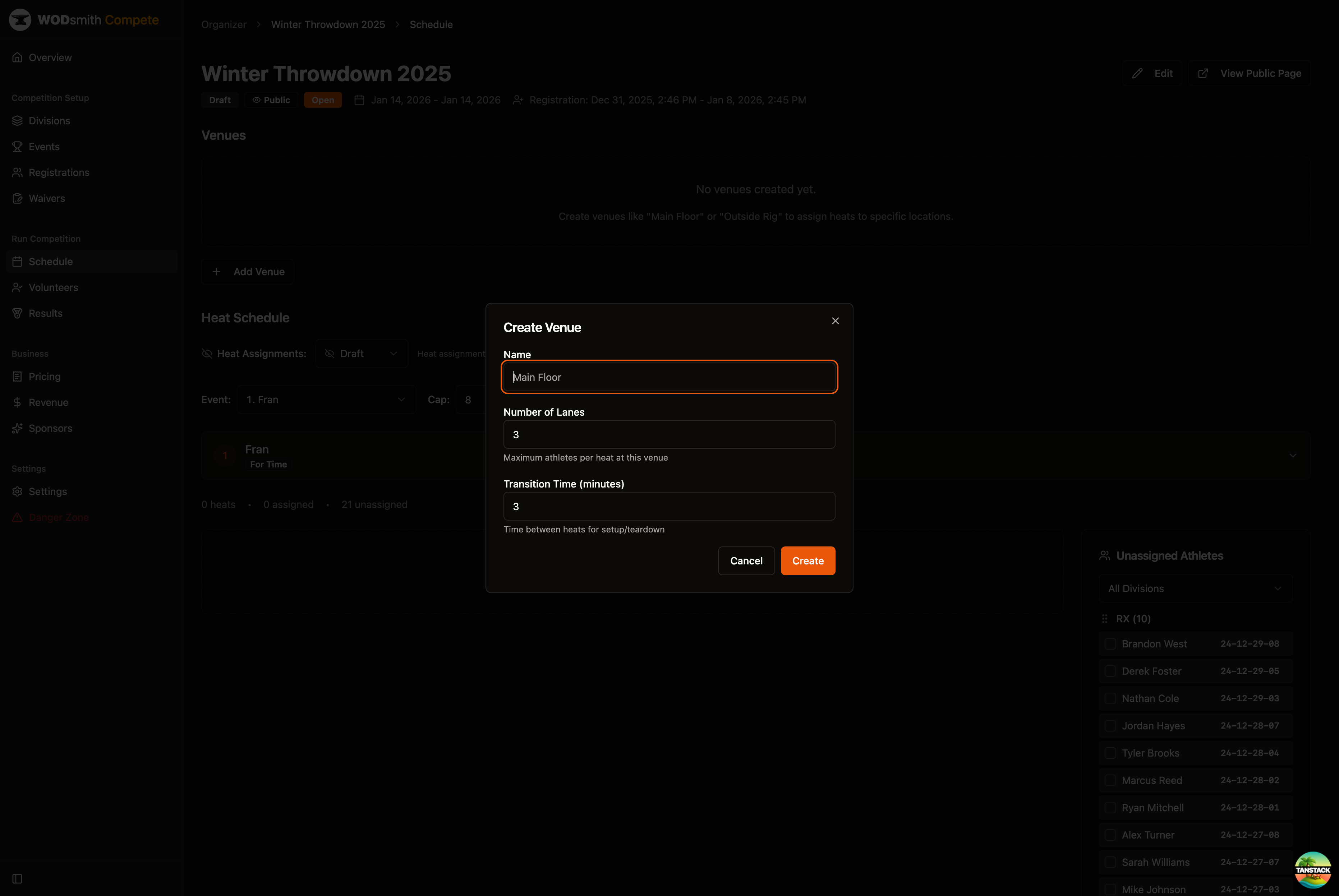
- Click Create
Your venue now appears with lane count and transition time:
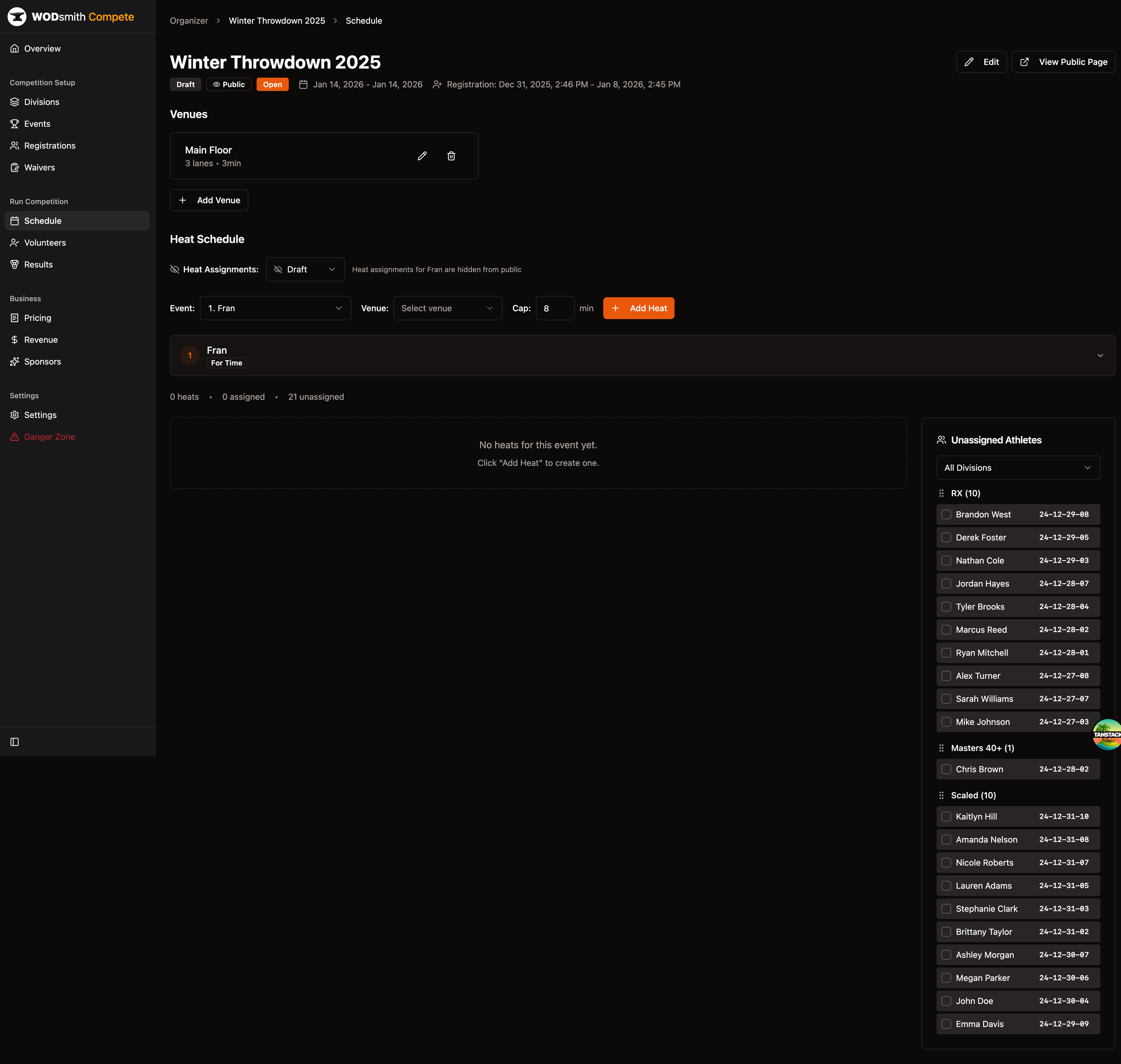
Creating Heats
- Select an Event from the dropdown
- Select a Venue (optional but recommended)
- Set the Cap time for the event
- Click Add Heat
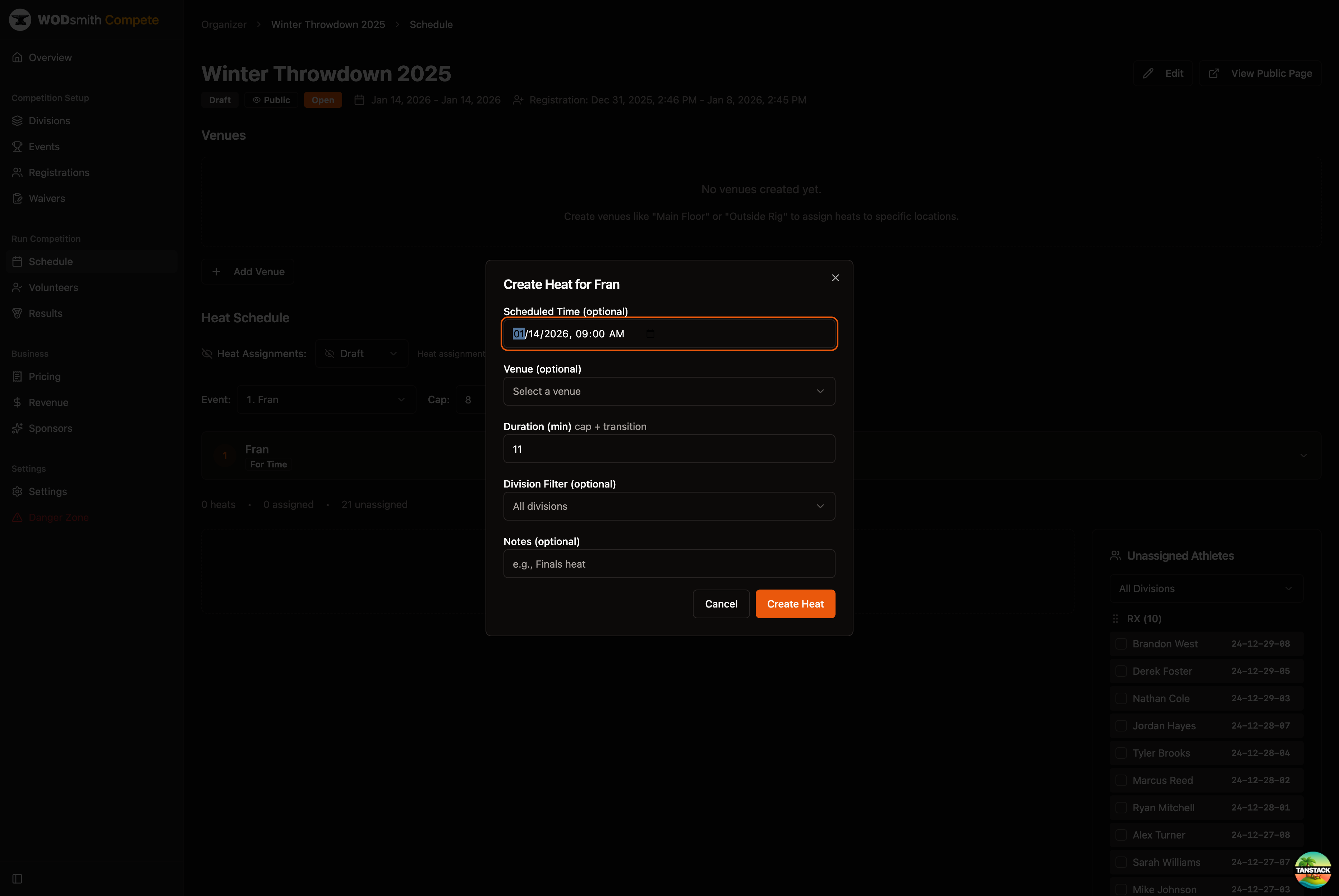
Configure the heat:
- Scheduled Time - When this heat starts
- Venue - Which venue/station
- Duration - Workout cap + transition time
- Division Filter - Limit to specific division (optional)
- Notes - Any additional info for judges
- Click Create Heat
Assigning Athletes to Heats
To manually assign athletes:
- Click an athlete in the Unassigned Athletes list (they become selected)
- Click on an empty lane slot (L1, L2, L3, etc.) in a heat
- The athlete is assigned to that lane
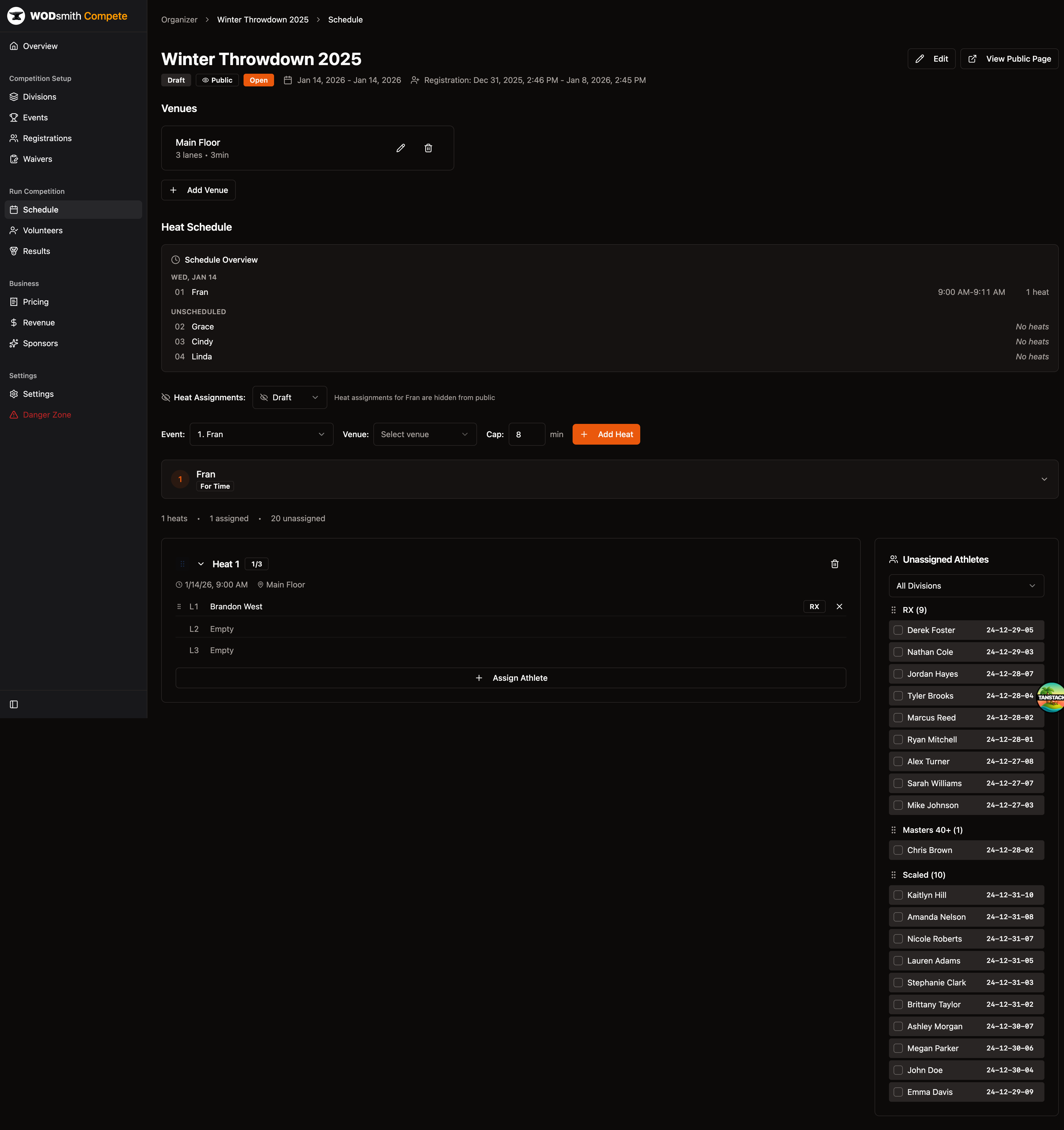
The heat card shows:
- Lane number and athlete name
- Division badge (RX, Scaled, etc.)
- Assigned/Unassigned count
Filtering Athletes
Use the division dropdown in the Unassigned Athletes section to filter by division.
Heat Configuration
Each heat displays:
| Element | Description |
|---|---|
| Heat Number | Sequential heat order |
| Assigned Count | Athletes assigned vs. venue capacity |
| Scheduled Time | Start time |
| Venue | Assigned location |
| Lane Slots | Individual lane assignments |
Publishing the Schedule
Control when athletes can see their heat assignments:
- Use the Heat Assignments dropdown
- Select Draft (hidden) or Published (visible)
When set to Draft, athletes cannot see heat assignments on the public schedule.
For judge-facing paper schedules, open Volunteers → Judge Schedule → View printable schedule. The master grid prints all heats and lanes; judge packets print one personalized run sheet per judge.
Schedule Overview
The Schedule Overview section shows a timeline view:
- Events grouped by date
- Heat count per event
- Unscheduled events listed separately
See also: How to Run Event Day